

You may search for a YouTube to WAV converter expecting better sound quality, especially when saving music from YouTube or YouTube Music. But since YouTube audio is already compressed, converting it to WAV will not magically restore true lossless quality. Still, WAV files are useful for audio editing, game modding, CD burning, and avoiding extra quality loss during repeated edits or format changes. The real challenge is finding a converter that actually works without broken links, fake download buttons, aggressive ads, or unstable parsing.
To help you avoid wasting time on random tools, we tested several desktop and online YouTube to WAV converters. We also checked popular tools that often appear in recommendation lists or AI Overview results to see whether they truly support native WAV output. In this guide, you can compare audio quality, speed, batch support, safety, file limits, ads, and real usability before choosing the right tool for you.
Attention: Downloading or recording content from YouTube or YouTube Music may violate YouTube's Terms of Service and copyright rules, especially for copyrighted music. Only convert content you own, have permission to use, or that is clearly licensed for download or reuse. This guide is for format comparison and personal workflow reference only.
Quick Pick: Which YouTube to WAV Converter Fits You Best?
A good YouTube to WAV converter should do more than simply change file formats. For most users, the real priorities are stable downloads, clean audio output, reasonable speed, and fewer ads, redirects, or parsing errors. Some tools are better for batch playlist downloads and long-term music collection, while others are better for quick one-time conversions in the browser. The comparison below shows which converter fits different workflows and quality needs.
| Tool | Convert Quality | Playlist Support | Pop-up Ads | Best For | What Stood Out During Testing | Main Limit |
| TuneFab YouTube Music Converter | High (up to 320kbps) | Yes | No | Long-term music collection and library management | • Stable playlist parsing • Built-in YouTube Music player • Native WAV export |
Free trial only allows limited downloads |
| Audacity | Low | No | No | Recording and editing audio manually | • Completely free • Flexible WAV export • Useful for editing and post-production |
Records in real time instead of direct downloading |
| CutYT | Medium | No | No | Quick browser-based WAV downloads | • Clean interface • Fast downloads • Supports trimming audio before export |
Parsing may occasionally fail depending on server status |
| 4kdownload | Medium | No | Yes | Casual one-time conversions | • Simple interface • Usable WAV downloads without installation |
Slower parsing and frequent redirect ads |
| Y2Mate | Medium | No | Yes | Fast MP3 downloads from YouTube | • Quick parsing speed • Easy single-track downloads |
Does not support native WAV downloads |
To help you decide more easily, we tested 5 available converters, including desktop programs and online tools. We evaluated each converter based on its download workflow, output quality, stability, ads, speed, and overall usability for different listening and editing needs.
How We Tested These YouTube to WAV Converters
We tested each tool with single YouTube links and music-related links where supported. During testing, we checked whether each converter offered native WAV output, how many steps were needed, whether ads or redirects appeared, whether the downloaded file played correctly, and whether the output matched the selected format.
For desktop tools, we also checked playlist handling, output settings, metadata, and overall stability. For online tools, we focused more on parsing success, download speed, pop-up behavior, and whether the final file was truly available as WAV.
Best YouTube to WAV Converters on Desktop for Long-Term Use
If you regularly convert YouTube videos, music tracks, or playlists to WAV, desktop converters are usually the better choice. Compared with online tools, they often provide faster batch downloads, fewer interruptions, better output control, and a more reliable workflow for large music libraries or repeated conversions.
TuneFab YouTube Music Converter
TuneFab YouTube Music Converter is a desktop option for users who want a more stable YouTube Music to WAV workflow than most online converters can offer. It supports WAV, MP3, FLAC, and other common audio formats, and it can batch download playlists and albums. In our test, it offered clearer output settings, fewer interruptions, and a smoother workflow for larger downloads.
You May Want to Read: TuneFab YouTube Music Converter Review
Real Testing Experience
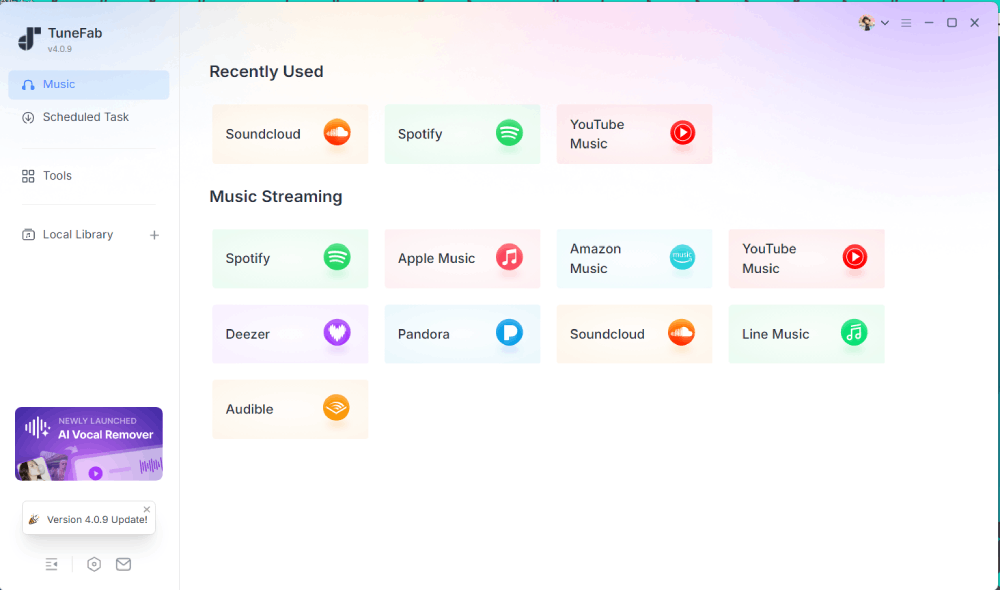
Step 1. After launching TuneFab, we selected YouTube Music from the supported streaming platforms. The app then opened a built-in YouTube Music web player. The layout felt clean and easy to navigate, especially compared with online converters filled with pop-ups and redirect ads.
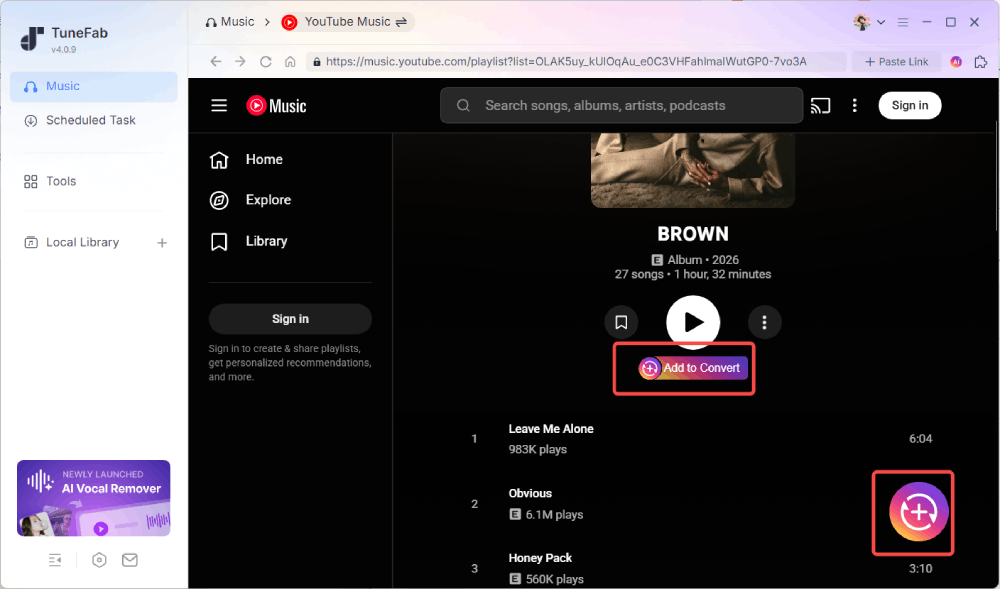
Step 2. We could search and play YouTube Music without logging in. To access personal playlists, liked songs, or library content, users can sign in to their YouTube Music account inside the app. Then, clicking "Add to Convert" adds selected songs to the queue without manual link copying.
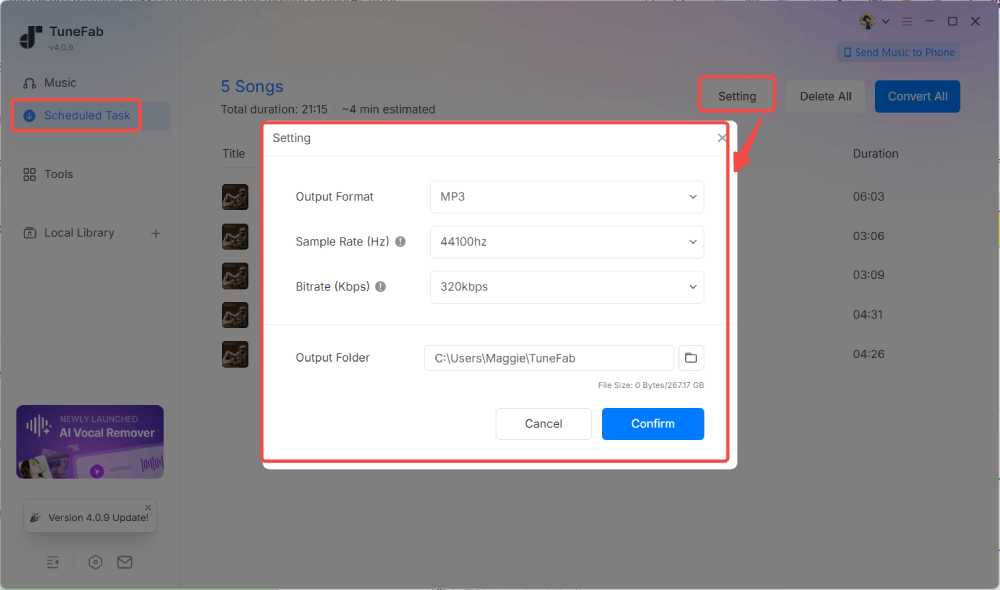
Step 3. Before downloading, the software asked us to choose the output format, audio quality, and save location. WAV was available directly from the format menu. At the time of testing, the free trial also showed a download limit of up to 3 songs per platform, with no length restriction.
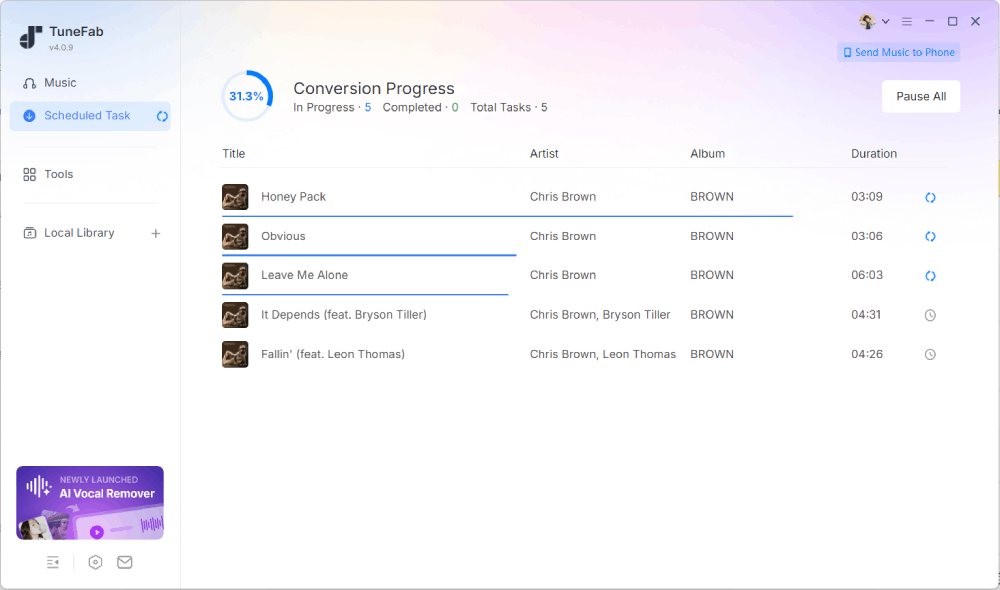
Step 4. Click "Convert Now" to start the download. In our test, the conversion remained stable and took about 1 minute for a 10-song playlist. We then checked the exported files and confirmed that the WAV format, metadata, and selected quality settings matched the output settings.
Best for:
- Downloading YouTube Music playlists or albums in bulk.
- Users who want WAV, FLAC, and other format options.
- Long-term offline music collection and library management.
- Users who prefer a cleaner, more stable desktop workflow.
- Users who want to avoid ads, fake buttons, or unreliable online converter pages.
Not ideal for:
- Users looking for completely free, unlimited downloads.
- People who only need a quick one-time conversion.
Audacity
Audacity is a free and open-source audio editor that can also be used as a YouTube to WAV recorder through system audio capture. Instead of directly downloading YouTube Music files, it records the audio playing on your computer and exports it as WAV, MP3, or other formats. Because of its flexible export settings and editing tools, Audacity is often used for audio editing, CD burning, game modding, and basic post-production workflows.
Note: Audacity works as a recorder rather than a direct downloader. The recording process can easily be interrupted by system notifications, browser sounds, or other audio playing on your computer, which may affect the final recording quality. If you need a cleaner file with less risk of background noise or system interruptions, a dedicated desktop converter with controlled output settings may be easier to manage.
Real Testing Experience
Step 1. After installing Audacity, we first changed the "Audio Host" setting to "Windows WASAPI" and selected the speaker option labeled "(loopback)." This setup allows Audacity to record system audio directly instead of capturing microphone noise.

Step 2. Next, click the red "Record" button and start playing a YouTube Music track in the browser. Since Audacity records audio in real time, a 5-minute song takes the full 5 minutes to capture. The recording itself stayed stable during testing, but system notification sounds could also be recorded if not muted beforehand.
Step 3. While recording, we checked the waveform meters to avoid clipping and distortion. Lowering the YouTube playback volume slightly helped keep the recording clean. Compared with direct download converters, this process requires more manual adjustment.

Step 4. After stopping the recording, we exported the file through "File > Export Audio" and selected WAV as the output format. The exported audio quality matched the recording settings, but metadata such as song titles and album art was not included automatically.
Best for:
- Users comfortable with manual recording settings.
- People who already use Audacity for editing or trimming audio.
- Recording YouTube audio for CD burning or game modding.
- Users who want to adjust or clean up audio before exporting.
Not ideal for:
- Users who want fast batch downloads.
- Users who need automatic metadata and album artwork.
- Beginners looking for one-click YouTube to WAV conversion.
- Users who want clean output without real-time recording risks.
Best Free YouTube to WAV Converters Online for Casual Use
Online YouTube to WAV converters are usually the most convenient option for casual downloads because they work directly in the browser without installation. However, compared with desktop YouTube downloaders, online converters are often more limited in stability, playlist support, audio settings, and ad-free experience, so choosing a reliable site matters.
CutYT
CutYT is a browser-based YouTube to WAV converter designed for quick and simple audio downloads without installing software. Along with WAV, it can download YouTube videos and export audio in several common formats. Compared with many similar online converters, its interface feels relatively clean, and during testing, we encountered fewer pop-up ads and redirects than expected from free web-based tools.
Real Testing Experience
Step 1. After opening the CutYT website, we pasted a YouTube Music or video link into the search box. The page automatically started loading the audio and displayed a "Load WAV Audio" status message without requiring extra clicks or account registration.
Step 2. Depending on network conditions, the loading process occasionally failed and required refreshing the page or retrying the link. However, once the parsing completed successfully, the page displayed the track information clearly, including the thumbnail, title, and audio duration.

Step 3. One useful feature we noticed was the built-in trim option located near the bottom of the page. This allows you to cut the song and download only the section you need. If trimming is unnecessary, clicking "Download WAV" immediately starts the download process and saves the file to the browser's default download folder.
Step 4. During testing, the download speed was fairly quick, with most songs finishing in around 10 seconds, depending on file length and network speed. After downloading, the site displayed basic file information such as format and quality. We also checked the exported WAV files manually, and the downloaded audio generally matched the selected settings and expected playback quality.

Best for:
- Quick one-time YouTube to WAV downloads.
- Users who do not want to install desktop software.
- Downloading short audio clips or single songs.
- Casual users looking for a simple browser-based tool.
- Trimming part of a song before downloading.
Not ideal for:
- Downloading playlists or albums.
- Users who need long-term, stable access.
- Large music library management.
- Advanced audio quality customization.
4kdownload
4kdownload.to is an online YouTube to WAV converter for quick audio and video downloads without installing software. Like many free online converters, it works by pasting a YouTube link into the page, but the overall experience depends heavily on server status, parsing speed, and ads.
Real Testing Experience
Step 1. After opening the website, we pasted a YouTube Music link into the search box and clicked "Download." The converter did not process the link instantly, but spent some time fetching and parsing the audio resource before showing the result page. Compared with some faster online tools, the loading speed felt slightly slower during testing.
Step 2. Once the track information appeared, clicking the download button again triggered another "Processing" stage. The site needed additional time to prepare the WAV file before the actual download resource became available.

Step 3. When we clicked the final download button, the browser opened an ad page in a new tab. After we returned to the original page, the WAV file had already started downloading to the default download folder.
Step 4. The downloaded audio file was playable and matched the selected WAV format. However, compared with desktop tools, the overall process felt slower and less stable because of the repeated loading steps and redirect ads during conversion.

Best for:
- Casual one-time YouTube to WAV downloads.
- Users who prefer browser-based tools without installation.
- Downloading individual songs or short audio clips.
- Users who do not need advanced audio settings.
Not ideal for:
- Users sensitive to redirect ads and pop-ups.
- Fast batch downloading workflows.
- Large playlist or album downloads.
- Long-term stable music management.
Y2Mate: Popular in AI Overview, But Not a Real WAV Converter
Y2Mate is a widely mentioned online YouTube downloader, and it may appear in recommendation posts or Google AI Overviews for YouTube download-related searches. We included it in this test to check whether it truly works as a YouTube to WAV converter. In our test, it did not provide native WAV downloads and mainly offered MP3 and MP4 options instead.
Real Testing Experience
Step 1. After opening the Y2Mate website, we pasted a YouTube or YouTube Music link into the search box. The site quickly parsed the video information and displayed available download options without requiring account registration.
Step 2. Unlike dedicated YouTube to WAV converters, Y2Mate only provided MP3 and MP4 download options during testing. It also did not support playlist or album downloads, making it better suited to single-track conversions.

Step 3. After clicking "Download," the site opened an advertisement page in a separate tab before continuing the process. Returning to the original page automatically triggered the audio download, which was then saved to the browser's default download folder. The overall download speed was fairly fast for short songs.
Step 4. Although the downloaded file worked normally, the audio was still based on MP3 compression rather than direct WAV extraction. Converting the MP3 file into WAV afterward only increased the file size without restoring true lossless quality, so the final audio quality was generally lower compared with tools that support native WAV output directly.

Only consider it if:
- You mainly need MP3, not WAV.
- You only want a quick single-song download.
- You do not mind redirect ads.
Not recommended for:
- Users who need native WAV output.
- Playlist or album batch downloads.
- Lossless-style editing workflows.
- Users who want a clean, ad-free conversion page.
FAQs About Converting YouTube to WAV
Is It Legal to Convert Music from YouTube to WAV?
Downloading copyrighted music from YouTube without permission may violate YouTube's Terms of Service and copyright law. The safest option is to convert only content you own, content you have permission to use, or content that is clearly licensed for download or reuse. This article does not provide legal advice.
Does Converting YouTube to WAV Improve Audio Quality?
Not really. YouTube audio is already compressed before streaming, so converting it to WAV does not restore true lossless quality. In most cases, converting MP3 or streamed audio to WAV only creates a larger file without adding more detail. WAV is still useful for editing, CD burning, game modding, and avoiding extra quality loss during repeated edits or format changes.
Is There a YouTube to WAV Converter Chrome Extension?
Some Chrome extensions can record or capture YouTube audio and export it as WAV, but many are unstable, limited by browser security rules, or removed from the Chrome Web Store over time. Many also work more like recorders than direct YouTube to WAV downloaders.
Can I Convert YouTube to WAV on Android or iPhone?
Yes, but mobile options are usually more limited than desktop tools. Some online YouTube to WAV converters may work in mobile browsers, but ads, redirects, failed parsing, and file management issues are more common on phones. Android users may have more app-based options, while iPhone users are often limited by iOS file handling and browser restrictions.
Final Verdict
The best YouTube to WAV converter depends on your workflow. If you frequently convert playlists, need native WAV exports, or care about long-term music management, desktop tools are usually more reliable than online converters. In our test, TuneFab YouTube Music Converter had the smoothest workflow for batch downloading, format control, and stable performance.
If you prefer a free manual setup, Audacity is still practical for recording and exporting WAV audio. For casual browser-based use, CutYT felt like the cleanest online WAV converter during testing. 4kdownload.to can work for occasional single-file downloads, though its ads and repeated processing steps make the experience less smooth. Y2Mate is worth mentioning only as a fact-check case: it is often recommended for YouTube downloads, but in our test, it did not offer native WAV output.