

AAC (Advanced Audio Coding) is a widely used audio format that delivers better compression than MP3 while maintaining good sound quality. However, MP3 remains the more universally supported format, making AAC to MP3 conversion a common solution for improving compatibility across devices, media players, car stereos, and editing software.
Before choosing an AAC to MP3 converter, check whether your AAC files are DRM-free or DRM-protected. Most desktop programs, online converters, and mobile apps can convert DRM-free AAC files directly, while protected AAC files, such as downloaded Apple Music tracks, require a dedicated converter with DRM removal support. Below, we've rounded up the 6 best AAC to MP3 converters for Windows, Mac, online, and mobile to help you find the right tool for your needs.
How to Choose the Best AAC to MP3 Converter
For ordinary AAC files, most online converters and mobile apps will get the job done. However, if your AAC files are protected, such as downloaded Apple Music tracks, you'll need a converter that supports Apple Music DRM removal.
Thus, when choosing AAC to MP3 converters, consider these key factors:
- AAC file type: DRM-free or protected
- Platform: Windows, Mac, online, Android, or iPhone
- Output quality: Bitrate options up to 320kbps
- Batch conversion: Convert multiple files at once
- Privacy & limits: File size restrictions, upload security, and free usage limits
Based on these criteria, we've selected the best AAC to MP3 converters for different scenarios, from free online tools to dedicated desktop software.
Our Recommended AAC to MP3 Converters by Use Case
Whether you're looking for a built-in desktop program, a free online converter, or a mobile app, there's an AAC to MP3 converter for every scenario. Below are our top recommendations, including official tools for DRM-free AAC files and a dedicated solution for protected Apple Music tracks.
Best Official Program: iTunes & Apple Music
Rating: 4/5 – Good for Basic Use
Supported OS: Windows (iTunes), macOS (Apple Music)
Best for: Users with DRM-free AAC files who prefer Apple's official conversion tool, which is not compatible with protected Apple Music tracks.
Why We Picked It
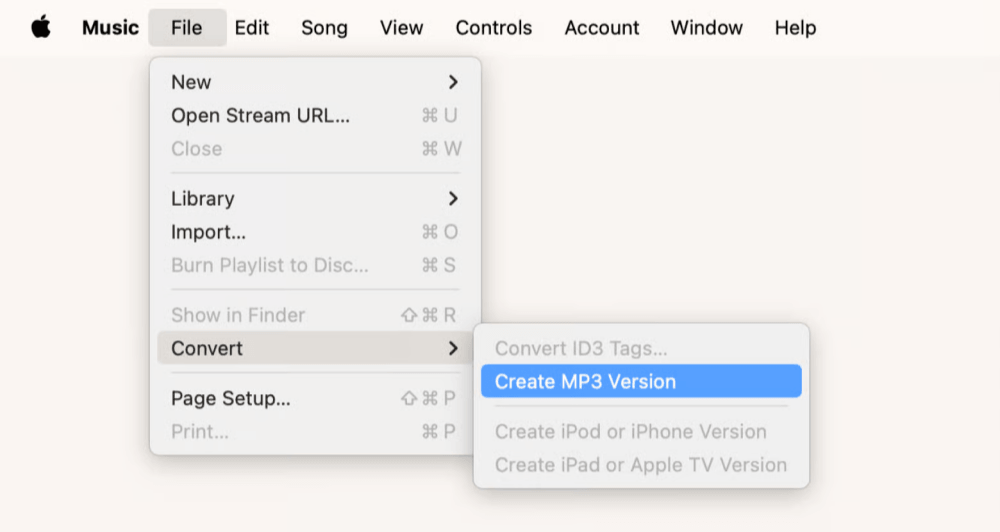
Apple provides a built-in way to convert DRM-free AAC files to MP3 without installing any third-party software. On Windows, this feature is available through iTunes, while on macOS Catalina and later, it has been integrated into the Apple Music app. After selecting "MP3 Encoder" in the import settings, you can create an MP3 version directly from your music library in just a few clicks. During our testing, the process was straightforward and reliable for converting personal AAC files.
As Apple's official solutions, iTunes and Apple Music can convert DRM-free AAC files to MP3 through their built-in import settings. They also keep a copy of the original file, but output quality and metadata preservation may vary depending on your settings and source file. However, they only support DRM-free AAC files. If you only need to convert a few local AAC files, they're a simple and trustworthy choice; for protected Apple Music files or frequent batch conversions, a specialized Apple Music converter is a better fit.
Performance & Technical Specs
| Category | Details |
| Platform | Desktop (Windows & macOS) |
| Installation Required | Yes (iTunes app) |
| Input Formats | DRM-free AAC |
| Output Formats | MP3 |
| Max MP3 Bitrate | Up to 256kbps |
| Lossless Output | No |
| Conversion Speed | Standard (relatively slow for large batches) |
| Batch Conversion | Limited (manual selection required) |
| Metadata Preservation | Yes (retains existing library metadata) |
| Hardware Acceleration | No |
| DRM Removal | No |
| Customer Support | Apple Support (official documentation & help center) |
| Free Trial | Not applicable (free feature) |
Pros
- Free official solution from Apple
- Converts DRM-free AAC files within the iTunes or Apple Music app
- Supports MP3 output through adjustable import settings
Cons
- Cannot convert DRM-protected Apple Music tracks
- Slower than dedicated converters, especially for batch conversions
Best Free Desktop Option: VLC Media Player
Rating: 4.0/5 – Free & Versatile
Supported OS: Windows, macOS, Linux
Best for: Users who want a free, offline way to convert a few DRM-free AAC files without relying on online tools.
Why We Picked It
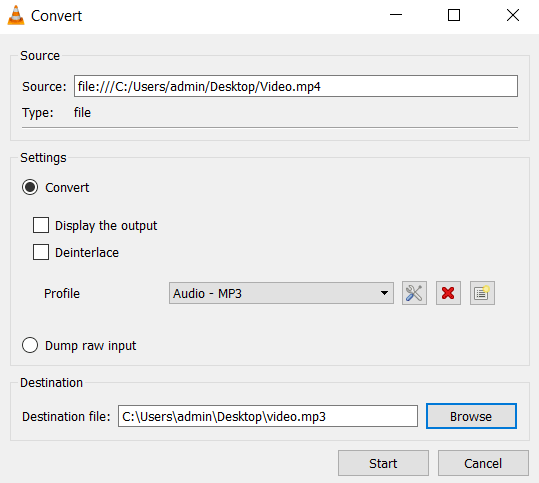
Although VLC Media Player is best known as a free, open-source multimedia player, it also includes a built-in file conversion feature that can convert DRM-free AAC files to MP3. During our testing, we were able to import local AAC files through VLC's Convert or Save function and export them as MP3 without requiring an internet connection. Since VLC is available on Windows, macOS, and Linux, it's a practical cross-platform option for occasional audio conversion.
That said, VLC isn't designed as a dedicated audio converter. The conversion settings are relatively basic, and it doesn't focus on features such as batch music library management or reliable metadata preservation. If you only need to convert a few local AAC files for better compatibility, VLC is a convenient free choice. For larger music collections or protected AAC files, a dedicated converter will provide a smoother experience.
Performance & Technical Specs
| Category | Details |
| Platform | Desktop (Windows, macOS, Linux) |
| Installation Required | Yes |
| Input Formats | DRM-free AAC (codec support may vary) |
| Output Formats | MP3, MP4, FLAC, etc. |
| Max MP3 Bitrate | Up to 320 kbps (configurable) |
| Lossless Output | No |
| Conversion Speed | Standard (suitable for small batches) |
| Batch Conversion | Limited |
| Metadata Preservation | Not guaranteed |
| Hardware Acceleration | No |
| DRM Removal | No |
| Customer Support | Community forums & official documentation |
| Free Trial | Free and open source |
Pros
- Free and open-source solution for cross-platform users
- Easy to use for basic AAC to MP3 conversions
- Allows basic MP3 conversion for DRM-free AAC files
Cons
- Supports DRM-free AAC files only
- Limited customization options
- Metadata may not always be preserved reliably
Best Online Option: Convertio
Rating: 4.1/5 – Convenient & Flexible
Supported OS: Web-based (Works on Windows, macOS, Linux, iOS, Android)
Best for: Users who need quick, installation-free online AAC to MP3 conversion for small DRM-free files (file size limits, no DRM support).
Why We Picked It
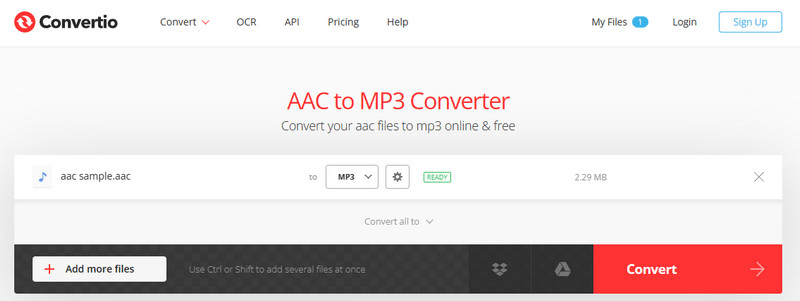
Convertio is one of the easiest ways to convert AAC files to MP3 without installing software. During our evaluation, we found its browser-based workflow intuitive: simply upload an AAC file, choose MP3 as the output format, and start the conversion. It also offers useful audio settings such as bitrate adjustment, sample rate selection, and a built-in audio trimmer, giving users more control than many basic online converters.
As an online service, Convertio works across Windows, Mac, Android, and iPhone, making it a convenient choice for occasional conversions on almost any device. However, it doesn't support protected AAC files, and free users may encounter file size limits or slower uploads depending on their internet connection.
Performance & Technical Specs
| Category | Details |
| Platform | Web-based (Cross-platform) |
| Installation Required | No |
| Input Formats | DRM-free AAC |
| Output Formats | MP3 |
| Max MP3 Bitrate | Up to 320kbps (adjustable) |
| Lossless Output | No |
| Conversion Speed | Internet-dependent |
| Batch Conversion | Yes |
| Metadata Preservation | Limited (may not fully retain ID3 tags) |
| Hardware Acceleration | No |
| DRM Removal | No |
| Customer Support | Online help center & email |
| Free Trial | Free with size limitations |
Pros
- Free online AAC to MP3 converter with no software installation
- Works across any web-based browser
- Supports audio customization, including bitrate and sample rate settings
Cons
- The free version has file size limits and may require an account for larger files
- Performance depends on internet speed and connection stability
- Uploaded and converted files are stored temporarily before automatic deletion
Best for Android & Online: FreeConvert
Rating: 4.1/5 – Convenient & Flexible
Supported OS: Web-based (Windows, macOS, Linux, Android, iPhone)
Best for: Android users and anyone looking for a fast, installation-free AAC to MP3 converter for DRM-free audio files.
Why We Picked It
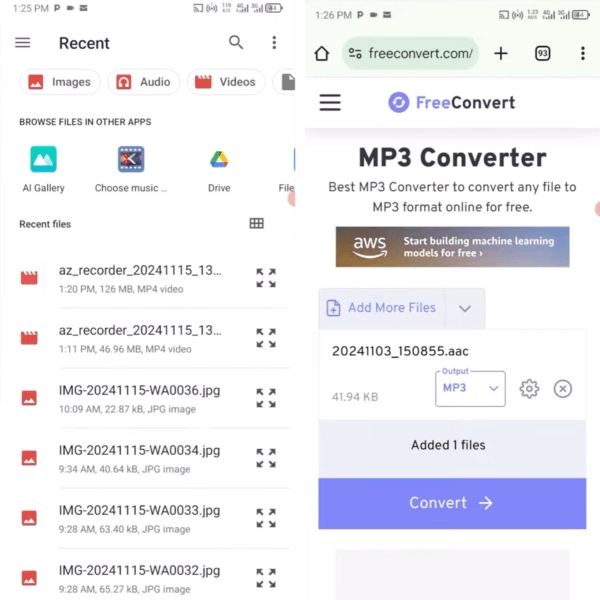
FreeConvert is a convenient online AAC to MP3 converter that works especially well on Android devices, as it requires nothing more than a mobile browser. During our evaluation, we found the interface clean and easy to navigate, allowing users to upload AAC files from local storage or cloud services and convert them to MP3 in just a few steps. It also includes useful audio settings such as bitrate, codec, volume adjustment, and fade effects for users who want more control over the output.
Because it's entirely web-based, FreeConvert works across Windows, Mac, Android, and iPhone without requiring software installation. This makes it a practical choice for occasional conversions on the go. However, it only supports DRM-free AAC files, and free users are subject to file size limits, while conversion speed depends on internet performance.
Performance & Technical Specs
| Category | Details |
| Platform | Web-based (Windows, macOS, Linux, Android, iPhone) |
| Installation Required | No |
| Input Formats | DRM-free AAC |
| Output Formats | MP3 |
| Max MP3 Bitrate | Up to 320kbps (adjustable) |
| Lossless Output | No |
| Conversion Speed | Internet-dependent |
| Batch Conversion | Yes (free version subject to file size limits) |
| Metadata Preservation | Limited (may not retain all metadata) |
| Hardware Acceleration | No |
| DRM Removal | No |
| Customer Support | Help Center & email support |
| Free Trial | Free with file size limitations |
Pros
- Works seamlessly on Android and other devices through any web browser
- No installation required, and it supports customizable MP3 output settings
- Free to use for converting DRM-free AAC files
Cons
- Doesn't support DRM-protected AAC or Apple Music files
- The free version has file size limitations for larger conversions
- Conversion speed and stability depend on your internet connection
Best for iOS: AAC Converter, AAC to MP3
Rating: 4.2/5 – Mobile & Unlimited
Supported OS: iOS 14.0 or later (iPhone & iPad)
Best for: iOS users who want unlimited, fully offline AAC to MP3 conversion on-device (iOS only, no DRM support).
Why We Picked It
AAC Converter, AAC to MP3 is a lightweight iOS app that lets you convert AAC files directly on your iPhone or iPad. During our evaluation, we found its offline workflow simple and convenient, with no need to upload files to a server. It supports multiple audio formats, allows users to adjust output settings such as bitrate and sample rate, and saves converted files locally for easy access.
Compared with browser-based converters, its biggest advantage is privacy, as all processing takes place on your device. It's a practical choice for users who frequently convert AAC audio to iOS devices without relying on an internet connection. However, like other standard AAC converters, it doesn't support DRM-protected AAC files, making it unsuitable for converting downloaded Apple Music tracks.
Performance & Technical Specs
| Category | Details |
| Platform | Mobile (iOS – iPhone & iPad) |
| Installation Required | Yes (App Store download) |
| Input Formats | AAC and other common audio formats (DRM-free only) |
| Output Formats | MP3, M4A, OGG, WMA, WAV, OPUS, AAC |
| Max MP3 Bitrate | Adjustable (app-dependent) |
| Lossless Output | Yes (WAV) |
| Conversion Speed | Fast local processing (device-dependent) |
| Batch Conversion | Limited (mobile workflow) |
| Metadata Preservation | Basic metadata retention |
| Hardware Acceleration | Uses device processing engine |
| DRM Removal | No |
| Customer Support | App Store support channel |
| Free Trial | Not applicable (free app) |
Pros
- Converts AAC to MP3 entirely offline on iPhone and iPad
- Keeps files private with on-device processing
- Supports multiple audio formats and adjustable output settings
Cons
- Available only on iOS devices
- Doesn't support DRM-protected AAC or Apple Music files
- Less efficient than desktop software for managing large music libraries
Best for Protected AAC Files: TuneFab Apple Music Converter
Rating: 4.6/5 – Excellent
Supported OS: Windows 11/10/8/7, macOS 10.15 or later
Best for: Users who want fast AAC to MP3 conversion with DRM removal for Apple Music, batch processing, and full metadata (free trial limits 3 songs).
Why We Picked It
Unlike the other tools in this list, TuneFab Apple Music Converter is designed for protected AAC files, making it the most suitable option for users who want to convert downloaded Apple Music tracks to MP3. Standard AAC converters, including built-in programs, online tools, and mobile apps, cannot process protected Apple Music files because of DRM restrictions. TuneFab addresses this specific use case by converting Apple Music tracks directly into DRM-free MP3, FLAC, WAV, and other widely supported formats.
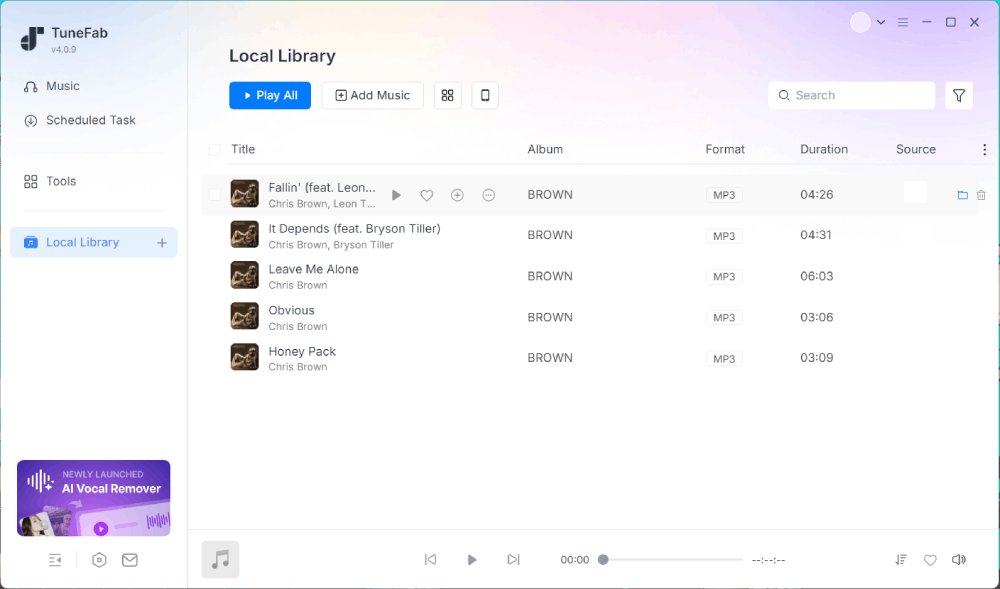
For users who also work with DRM-free AAC files, TuneFab includes a built-in Format Converter that can convert local AAC files to MP3 without uploading them to the cloud. During our evaluation, the desktop-based workflow proved more reliable than online converters for handling larger audio collections, while supporting batch conversion, customizable output quality up to 320kbps MP3, and automatic metadata preservation.
Another advantage is that TuneFab integrates the Apple Music web player directly into the program, allowing users to browse their library and export supported tracks in one place without relying on separate conversion tools. If your goal is simply to convert a few ordinary AAC files, the official and online options above are usually sufficient. However, if you're dealing with protected Apple Music files or frequently converting large music libraries, TuneFab will be the best AAC to MP3 converter software.
Performance & Technical Specs
| Category | Details |
| Platform | Windows & macOS desktop software |
| Installation Required | Yes (~200MB) |
| Input Formats | AAC (protected & unprotected), M4P |
| Output Formats | MP3, M4A, FLAC, WAV, AIFF |
| Max MP3 Bitrate | 320kbps |
| Lossless Output | Yes (FLAC, WAV) |
| Conversion Speed | Up to 35X real-time |
| Batch Conversion | Unlimited playlists & albums |
| Metadata Preservation | Full ID3 tags retained |
| Hardware Acceleration | Supported |
| DRM Removal | Yes |
| Customer Support | Email support (24–48 hrs) |
| Free Trial | 3 full tracks |
Pros
- Converts both DRM-protected Apple Music tracks and DRM-free AAC files
- Built-in Format Converter for local AAC to MP3 conversion
- Supports batch conversion, customizable output quality up to 320kbps, and metadata preservation
Cons
- Free trial allows 3 full song conversions
- Primarily designed for Apple Music users rather than general audio conversion
Check the detailed review of TuneFab Apple Music Converter >>
Comparison of Top 6 AAC to MP3 Converters
To help you better choose a suitable tool to convert AAC files to MP3 according to your specific situation, here is a comparison table for you to distinguish their advantages and disadvantages.
| Tool | Best For | Platform | Free Limit | DRM Support | Batch Conversion | Max MP3 Bitrate | Upload Safety |
| TuneFab Apple Music Converter | Protected Apple Music AAC & large local libraries | Windows / macOS | 3 full tracks | ✅ Yes | ✅ Yes | Up to 320kbps | ✅ Local processing (no uploads) |
| Apple Music or iTunes | DRM-free AAC files | Windows (iTunes) / macOS (Apple Music) | Free | ❌ No | Limited | Up to 256kbps | ✅ Local processing |
| VLC Media Player | Basic DRM-free AAC conversion | Windows, macOS, Linux | Free | ❌ No | Limited | Up to 320 kbps (default preset limited to 256kbps) | ✅ Local processing |
| Convertio | Quick online conversions | Web (Windows, Mac, Android, iPhone) | Free with file size limits | ❌ No | Limited | Up to 320kbps (adjustable) | ⚠️ Cloud upload required |
| FreeConvert | Android & browser-based conversion | Web (Windows, Mac, Android, iPhone) | Free with file size limits | ❌ No | Yes* | Up to 320kbps (adjustable) | ⚠️ Cloud upload required |
| AAC Converter, AAC to MP3 | Offline conversion on iPhone & iPad | iOS | Free | ❌ No | Yes | Up to 320kbps (adjustable) | ✅ Fully local processing |
Final Verdict: Which AAC to MP3 Converter to Choose?
The best AAC to MP3 converter ultimately depends on how you plan to use it. If you only need to convert a few DRM-free AAC files, built-in tools like Apple Music/iTunes or VLC Media Player are free and convenient, while online services such as Convertio and FreeConvert work well when you don't want to install software. iPhone users who prefer offline processing can also choose a dedicated iOS app.
If your audio files are DRM-protected Apple Music tracks, however, standard AAC converters won't be able to process them. In this case, a desktop solution designed for protected content, such as TuneFab Apple Music Converter, is a more appropriate choice. It also suits users who frequently convert large local music libraries and prefer batch processing with customizable output settings.
Rather than focusing on the number of features, consider the type of AAC files you have, the platform you use, and how often you convert audio. Matching the converter to your specific needs will help you achieve the best balance of convenience, compatibility, and conversion quality.
FAQs About AAC to MP3 Conversion
Can I Convert AAC to MP3 via VLC Player?
Yes. VLC Media Player can convert DRM-free AAC files to MP3 through its Convert/Save feature. However, it offers limited output settings and doesn't support DRM-protected Apple Music files, making it more suitable for occasional conversions than large music libraries.
Does converting AAC to MP3 reduce quality?
Yes. Both AAC and MP3 are lossy formats. Converting AAC to MP3 may result in minor quality loss due to re-encoding. However, if you choose a high bitrate such as 320kbps MP3, the difference is usually not noticeable for most listeners. For better sound quality preservation, select the highest available bitrate during conversion.
Can I convert protected Apple Music AAC to MP3?
No built-in or online converter can convert DRM-protected Apple Music AAC files. To convert protected AAC files, you need a dedicated DRM removal tool like TuneFab Apple Music Converter, which can unlock Apple Music tracks and export them as standard MP3, FLAC, or WAV files.