
A Spotify recorder captures the audio playing from Spotify in real time and saves it as a local audio file, making it a practical solution for recording songs, playlists, podcasts, or Spotify Web Player playback. Unlike Spotify downloaders or converters, most recording software works by capturing your system audio during playback. Some advanced tools can even split tracks automatically, remove ads, and preserve song metadata for a smoother recording experience.
With so many options available, choosing the right Spotify recorder depends on what you want to record and how you plan to use it. Whether you need a dedicated Spotify recording tool, a free audio recorder, software for capturing Spotify podcasts, or a solution that works with the Spotify Web Player, this guide reviews the 12 best Spotify recorders for Windows, Mac, Android, and iOS to help you find the right fit.
- Quick Review: Which Spotify Recorder Is Right for You?
- Part 1. Best Dedicated Spotify Audio Recorders
- Part 2. Best General Audio Recording Software
- Part 3. Best Spotify Podcast & Web Player Recorders
- Part 4. Best Spotify Recorders for Android & iPhone
- Bonus Tip: Best Spotify Recorder Alternative - TuneFab 🔥
- FAQs
- Conclusion
Quick Review: Which Spotify Recorder Is Right for You?
Before diving into the detailed reviews, here's a quick comparison of the best Spotify recorders covered in this guide. Since each tool is designed for different recording scenarios, use the table below to compare their key features and jump directly to the one that best matches your needs.
| Spotify Recorder | Platform | Output Format | Recording Method | Key Features | Ease of Use | Price | Best For |
| TuneFab Spotify Music Converter (Recorder Alternative) | Windows, macOS | MP3, M4A, WAV, FLAC, AIFF, AAC, ALAC | Direct conversion | Batch download, DRM removal, ID3 tags | ⭐⭐⭐⭐⭐ | From $25.95 | Permanent offline libraries |
| Cinch Streaming Audio Recorder | Windows, macOS | MP3, WAV | Real-time | Ad filtering, automatic ID3 tagging | ⭐⭐⭐⭐☆ | $39.95 | Clean Spotify recordings |
| Audials One | Windows | MP3, AAC, FLAC, WAV and more | Accelerated recording | Accelerated recording, auto tagging, multi-service support | ⭐⭐⭐⭐☆ | $39.90/year | Large music libraries |
| Spytify | Windows | MP3, WAV | Real-time | Track splitting, ad muting, metadata tagging | ⭐⭐⭐⭐☆ | Free | Spotify recording on Windows |
| Audacity | Windows, macOS, Linux | MP3, WAV, FLAC and more | Real-time | Professional editing, effects, noise reduction | ⭐⭐⭐☆☆ | Free | Editing recordings |
| Total Recorder | Windows | MP3, WAV, FLAC and more | Real-time | System & microphone recording, basic editing | ⭐⭐⭐☆☆ | Paid | Flexible audio capture |
| WavePad | Windows, macOS | MP3, WAV, and more | Real-time | Recording, editing, restoration | ⭐⭐⭐⭐☆ | $39.95 | Editing recorded audio |
| OBS Studio | Windows, macOS, Linux | MP4, MKV, MOV | Real-time screen recording | Screen + audio capture, livestreaming | ⭐⭐⭐☆☆ | Free | Spotify podcasts & Web Player |
| VideoSolo Screen Recorder | Windows, macOS | MP3, M4A, FLAC, and more | Real-time | Audio & screen recording, trimming | ⭐⭐⭐⭐☆ | $39.95 | Spotify Web Player recording |
| Apowersoft Free Online Audio Recorder | Web | MP3 | Real-time | Browser-based recording, no installation | ⭐⭐⭐⭐☆ | Free / Premium | Occasional web recording |
| AZ Screen Recorder | Android | MP4 | Real-time | Internal audio + screen recording | ⭐⭐⭐⭐☆ | Free | Android Spotify recording |
| iOS Built-in Screen Recorder | iOS | MOV (HEVC/H.264) | Real-time | Built-in recording, editable in GarageBand | ⭐⭐⭐⭐☆ | Free | iPhone/iPad Spotify recording |
Does a Spotify Recorder Actually Fit Your Needs?
A Spotify recorder is a great choice if you only need to capture a few songs, save a podcast episode, record audio from the Spotify Web Player, or create short clips for personal use. Most recording tools work in real time, making them ideal for occasional recording rather than building a large offline music library.
However, if your goal is to permanently save Spotify playlists or albums, preserve the original audio quality and ID3 tags, or avoid spending hours recording tracks one by one, a dedicated Spotify music downloader is usually the more practical solution. Unlike traditional recorders, it saves tracks directly instead of recording them during playback, making it a better choice for long-term offline listening and music collection.
Part 1. Best Dedicated Spotify Audio Recorders
Dedicated Spotify recorders are the best place to start, as they are specifically designed to capture Spotify playback and often include features such as automatic track splitting, metadata tagging, and ad handling.
Cinch Streaming Audio Recorder
Best for: Users who want to skip ads and record high-quality Spotify music as MP3 or WAV
Supported Devices & Installation: Windows and macOS; lightweight installer with simple setup, easy to start recording immediately
Recording Speed: Real-time recording; depends on playlist length and system performance
Output Format: MP3, WAV
Output Quality: Up to 320kbps for MP3; WAV output is available, but the final quality depends on the Spotify playback quality, system audio settings, and recording configuration.
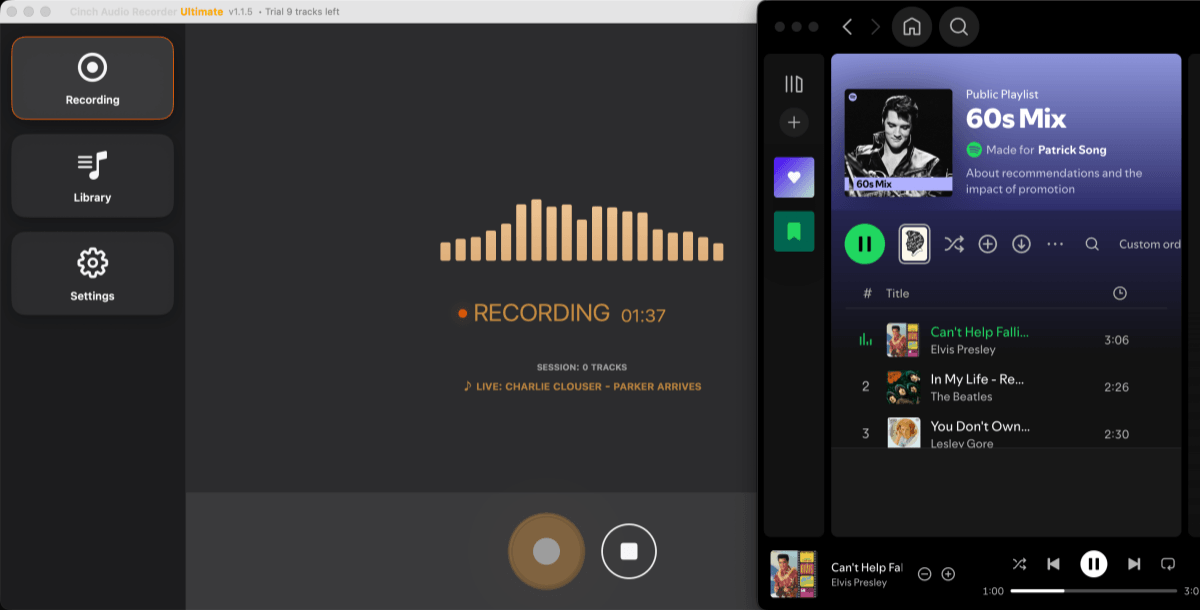
How Does It Work: Launch Cinch Streaming Audio Recorder. It captures the audio directly from the computer's sound card while Spotify is playing, automatically adds ID3 tags (like title, artist, album cover), and intelligently skips ads during recording.
Pros:
- Automatically skips ads during Spotify recording
- Preserve ID3 tags for recorded Spotify tracks
- Supports MP3 and WAV output formats
- Supports high-bitrate MP3 output up to 320kbps and uncompressed WAV output when configured properly
- Compatible with more platforms, such as recording music from Amazon Music, Apple Music, etc.
Cons:
- Limited output formats compared with some competitors
- Insufficient recording modes
Cinch Streaming Audio Recorder is a dedicated audio recorder that captures Spotify music in real time and saves it as high-quality MP3 or uncompressed WAV files for offline listening. Its built-in ID3 tagger automatically adds song titles, artists, album names, and cover art to each recording, making it easy to organize your music library afterward.
One of Cinch's biggest advantages is its smart ad filter, which can automatically detect and skip ads during Spotify playback. It also supports recording audio from other streaming services, including Amazon Music and Apple Music, making it a versatile choice if you use multiple music platforms.
Although Cinch records audio in real time, it can continuously record Spotify tracks from a playlist without requiring you to restart each recording manually. Overall, it's a reliable Spotify recorder for users who value automatic metadata tagging, ad filtering, and a simple recording workflow over advanced editing features or download-based solutions.
Use it if
- You want ad-free Spotify recordings automatically tagged with full metadata
- You need high-bitrate MP3 or uncompressed WAV recordings for offline playback
- You want continuous playlist recording or automated track capture
- You are using Windows or macOS and want a simple setup with reliable performance
Don't use it if
- You want to save entire playlists without real-time recording
- You want more output formats beyond MP3 and WAV
- You are a beginner looking for fully automated Spotify converters
Audials One
Best for: Users who want to record Spotify at accelerated speed with automatic tagging and multi-platform support
Supported Devices & Installation: Windows 10/11; requires Spotify account login within the software before recording
Recording Speed: Up to 5X–10X accelerated recording speed (depending on system and network performance)
Output Format: MP3, AAC, FLAC, WAV, and more
Output Quality: Up to 320 kbps (depending on source and settings)
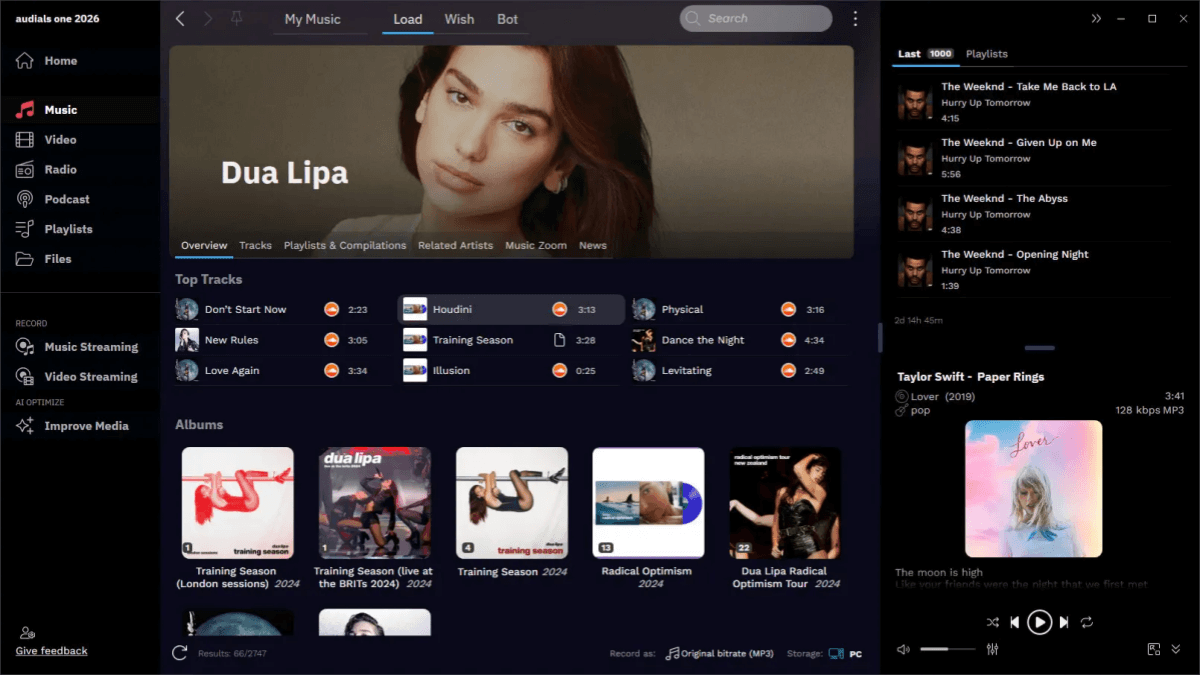
How Does It Work: Log in to your Spotify account in Audials Music, select the song or playlist, and the software will auto-detect and record the playback while accelerating the recording process. The recorded files will be saved locally with tags.
Pros:
- Supports recording from multiple streaming services
- Maintains solid recording quality depending on the source and settings
- Auto-tagging feature available to find and add tags for every recorded song
- Lets you adjust recording quality and output settings
- Simple editing functions are provided to trim the music recordings before outputting them
Cons:
- It would still be time-consuming compared with Spotify downloaders like TuneFab
- Requires a paid license after the trial
- Some users have reported occasional login or account verification issues when using third-party software
Audials One is an all-in-one streaming recorder that supports recording music from Spotify as well as other popular services such as Amazon Music and Apple Music. Instead of recording every track strictly in real time, it uses accelerated recording technology to capture songs more efficiently while automatically adding metadata such as song titles, artists, albums, and cover art.
Another advantage is its built-in media management features. In addition to adjustable recording quality, Audials One offers basic audio editing tools, allowing you to trim recordings before saving them. This makes it a practical choice for users who want to organize and manage a large music library after recording.
One thing to note is that Audials One requires you to sign in to your Spotify account within the software before recording. While its accelerated recording is noticeably faster than traditional 1× recorders, it still relies on playback rather than direct downloads. Overall, it's a powerful option for users who want a feature-rich streaming recorder with broad platform support instead of a Spotify-only recording tool.
Use it if
- You want accelerated Spotify recording instead of real-time 1X capture
- You need automatic ID3 tagging and multi-platform support
- You prefer an all-in-one streaming recorder for different services
Don't use it if
- You prefer tools that don't require signing in to your Spotify account
- You prefer direct high-speed Spotify downloaders like TuneFab
- You need a free or macOS-compatible solution
Spytify Audio Recorder
Best for: Windows users looking for a free Spotify recorder with ad muting, auto-splitting, and metadata tagging
Supported Devices & Installation: Windows only; setup may require additional audio configuration depending on your system.
Recording Speed: Real-time recording; depends on playlist length and sound card performance
Output Format: MP3, WAV
Output Quality: From 128kbps up to 320kbps
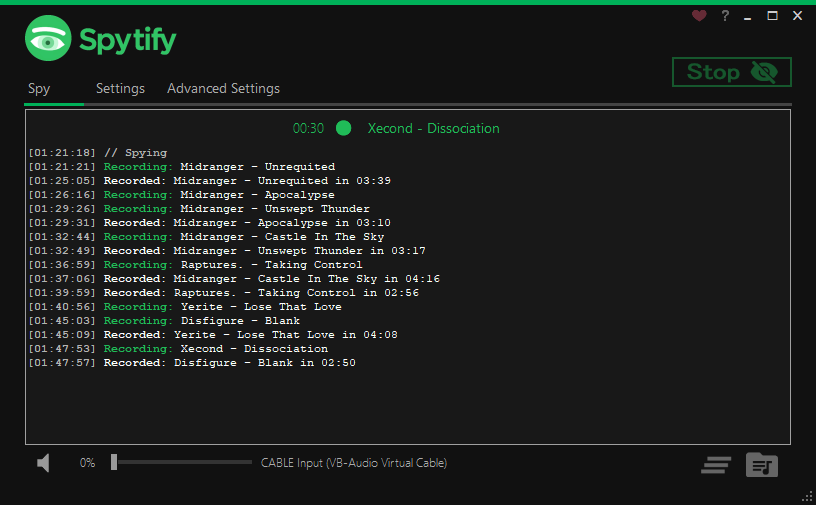
How Does It Work: After installing the Virtual Audio Cable, simply play your favorite playlist to start recording. Once the recording is finished, Spytify will automatically split all the songs into individual ad-free tracks and embed them with metadata.
Pros:
- Filter ads while recording Spotify tracks
- Mainstream formats provided
- Can automatically split Spotify playback into individual tracks
- Media metadata preservation
Cons:
- Requires real-time recording, so long playlists take a long time to capture
- Output quality depends on Spotify playback quality, system audio settings, and recording configuration
- Windows only; no macOS, Linux, Android, or iOS version
- No longer actively maintained, so compatibility may vary on newer Windows versions
Spytify Audio Recorder is a free Spotify recorder designed specifically for Windows users. Instead of downloading tracks directly, it captures Spotify audio in real time and automatically saves each song as an individual audio file. It also supports automatic track splitting, ad muting, and metadata tagging, making it one of the few dedicated Spotify recording tools with these built-in conveniences.
The recorder exports audio in common formats such as MP3 and WAV, making it easy to play your recordings on other devices or keep them for offline listening. Although the interface is simple, the initial setup may require some audio configuration depending on your Windows environment. Since Spytify records audio during playback, the recording process takes as long as the music itself, and the final audio quality depends on your playback and recording settings.
While Spytify is no longer actively maintained and lacks official customer support, it remains a practical choice for users looking for a free, lightweight Spotify recorder with automatic track detection. However, if you need faster processing, broader platform support, or a solution for downloading entire playlists, you'll likely want to consider a more modern alternative.
Use it if
- You want a free Windows-based Spotify recorder with ad muting and automatic track splitting.
- You want to remove ads from Spotify tracks and save them offline
- You don't mind slower real-time recording and basic functionality
Don't use it if
- You want high-quality, lossless Spotify downloads or faster conversion speeds
- You rely on modern Windows, macOS, or mobile devices for full-featured downloads
- You need batch downloads, automation, or full cross-platform support
Part 2. Best General Audio Recording Software
Unlike dedicated Spotify recorders, the following tools are built for recording any system audio rather than Spotify alone. They offer greater flexibility and editing capabilities, making them a good choice if you also work with other audio sources beyond Spotify.
Audacity
Best for: Intermediate to advanced users who want to record and customize Spotify audio for free
Supported Devices & Installation: Windows, macOS, and Linux; open-source, 100% free, lightweight installation, additional audio configurations required
Recording Speed: Real-time recording; depends on system performance and playlist length
Output Format: MP3, M4A, AIFF, FLAC, WAV, OGG, and more
Output Quality: Depends on the recording settings and source audio quality.
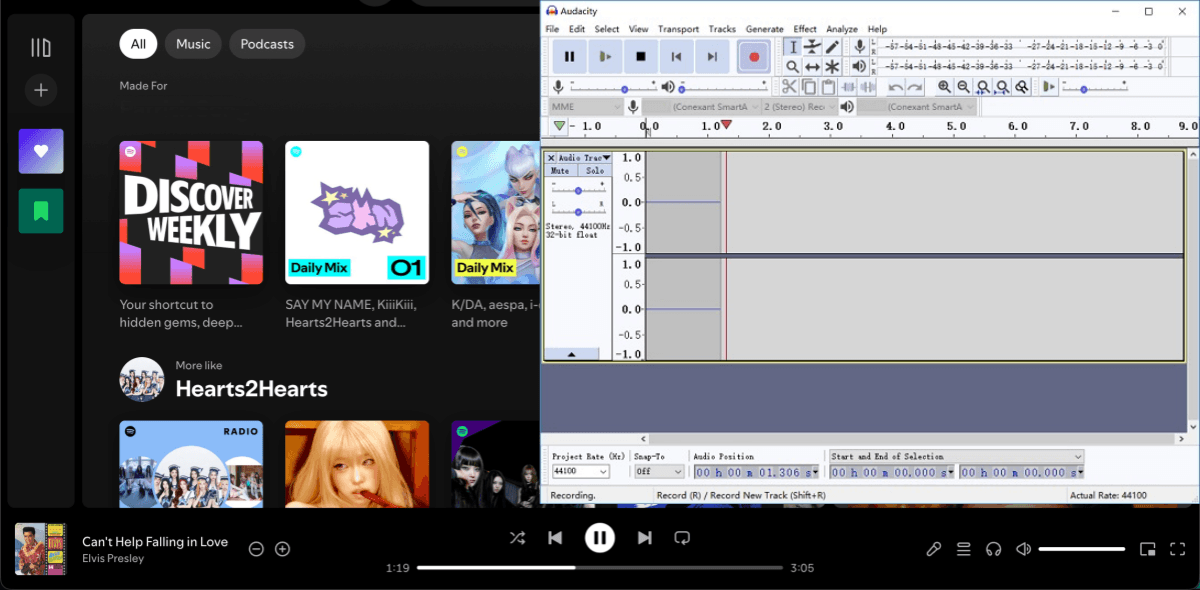
How Does It Work: Play the Spotify song and ensure the audio is streaming properly. Click the "Record" button in Audacity to capture the audio via system loopback or stereo mix.
Pros:
- Support various output audio formats
- Offer a set of tools for editing audio tracks
- Provide all kinds of advanced effects and filters
- Free to record from Spotify music and podcasts
- Compatible with Windows, macOS, and Linux
Cons:
- Difficult to use for newbies
- Record songs with ads
Audacity is a powerful open-source audio editor that can also be used to record Spotify music, podcasts, and other streaming audio. In addition to recording system audio, it supports a wide range of output formats, including MP3, M4A, AIFF, FLAC, WAV, and OGG, making it suitable for users who need flexibility when exporting recordings.
Beyond recording, Audacity offers professional editing features such as Noise Reduction, Reverb, Echo, Pitch and Tempo adjustment, Fade In/Out, equalizers, and audio filters. You can also trim, merge, and enhance recordings after capture. If you're using Spotify Free, advertisements will also be recorded and may need to be removed manually during editing.
Overall, Audacity is an excellent choice for users who want full control over recording and editing rather than automation. While it lacks features like automatic track splitting, metadata tagging, or accelerated recording, it remains one of the most capable free Spotify recording tools available.
Use it if
- You want a free recording of Spotify music and podcasts across multiple platforms
- You need advanced editing tools and effects for audio customization
- You are comfortable with a steeper learning curve and manual management
Don't use it if
- You want fast batch downloads, automated playlist recording, or direct playlist downloads
- You need to automatically skip ads or preserve metadata
- You are a beginner looking for a simple, ready-to-use Spotify recorder
Total Recorder
Best for: Windows users who want to record high-quality Spotify music while capturing both system and microphone audio
Supported Devices & Installation: Windows; lightweight installation with configurable recording settings
Recording Speed: Real-time recording at 1X speed; cannot batch record multiple tracks simultaneously
Output Format: MP3, WAV, WMA, FLAC, OGG, APE, and more
Output Quality: Supports uncompressed formats, but final quality depends on the source audio, playback quality, and recording settings.
How Does It Work: Launch Total Recorder, configure your recording settings, then start playing Spotify to begin recording. After recording, you can edit the files (cut, trim, merge) and save them to your device.
Pros:
- Multiple mainstream formats are provided
- Ensure good quality for safe Spotify recordings
- Editing features included (cut, trim, merge)
- Lightweight recording functionality
Cons:
- The free version has limited functionality; a subscription is needed for full features
- Cannot speed up recording or batch record multiple tracks simultaneously
- Only compatible with Windows systems
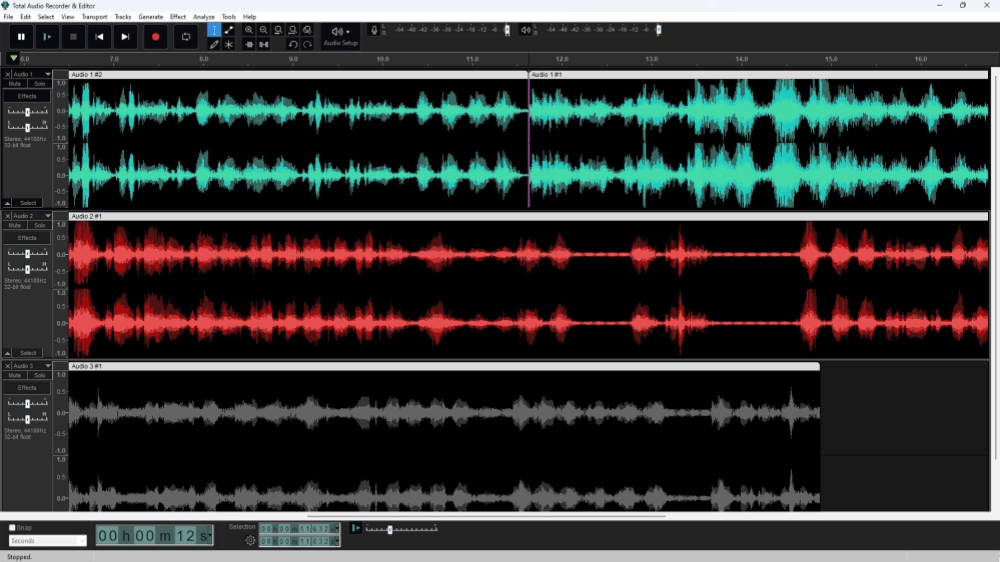
Total Recorder is a general-purpose audio recording program that works well for capturing Spotify playback on Windows. It supports recording both system audio and microphone input, making it a practical option for users who want to record music, podcasts, voiceovers, or other audio sources in one place.
The software supports a wide range of output formats and includes built-in editing tools for trimming, cutting, and merging recordings after capture. Although recording is limited to real-time playback and lacks automatic track splitting or metadata tagging, it offers flexible recording settings for users who prefer greater control over the recording process.
Overall, Total Recorder is a solid choice for Windows users who need reliable system audio recording with basic editing capabilities rather than Spotify-specific automation features.
Use it if
- You want to record Spotify music with both system and microphone audio
- You need flexible output formats and basic editing tools for Windows audio recordings.
- You're using Windows XP or newer and want a lightweight, no-lag recorder
Don't use it if
- You need fast batch downloads or automation
- You want cross-platform support (macOS, mobile)
- You want a faster alternative to real-time recording.
WavePad
Best for: Users who want to record, edit, and export Spotify music in over 50 audio formats with flexible editing tools
Supported Devices & Installation: Windows 7/8/10/11, macOS 10.12+; lightweight installer, quick setup, ready to record immediately. Mobile apps available for iOS and Android for on-the-go recordings
Recording Speed: Real-time recording (1X speed); no accelerated conversion or batch recording supported
Output Format: MP3, WAV, FLAC, and more
Output Quality: Depends on the selected output format and recording settings
How Does It Work: Launch WavePad and start recording while playing Spotify music. After recording, use the built-in editing tools to trim, enhance, normalize, or apply effects. Then export the file in your preferred format with added ID3 tags.
Pros:
- Easy-to-use recording and editing tools
- Audio restoration and noise reduction features to preserve good streaming experiences
- Equipped with editing functions to customize Spotify recordings before outputting
- Supports exporting to more than 50 audio formats
- Supported on more device systems other than Windows and Mac (compatible with iOS and Android as well)
Cons:
- Recording quality depends on the source audio and export settings
- No accelerated recording
- Limited recording modes are provided
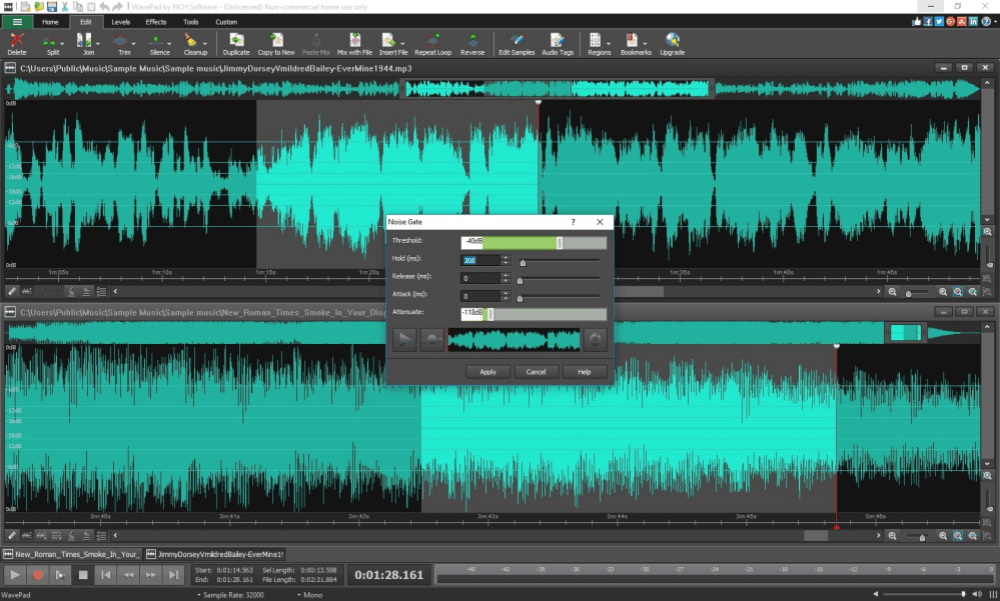
WavePad is a versatile audio recorder and editor that can also be used to capture Spotify music. Its biggest advantage is the wide range of editing features available after recording, including trimming, noise reduction, audio enhancement, normalization, and various sound effects. It also supports exporting recordings to more than 50 audio formats, making it easy to use your recordings across different devices and media players.
Unlike dedicated Spotify recording tools, WavePad focuses more on post-recording editing than recording automation. It doesn't support accelerated recording, automatic track splitting, or playlist recording, so capturing multiple songs still requires real-time playback. However, if you want to fine-tune your recordings before exporting them, WavePad offers much greater editing flexibility than most Spotify recorders.
Overall, WavePad is a good choice for users who prioritize audio editing and format compatibility over recording speed or Spotify-specific automation features.
Use it if
- You want highly editable Spotify recordings with flexible output formats
- You need audio restoration and enhancement tools
- You want cross-device support (Windows, macOS, iOS, Android)
- You prefer customized trimming and audio effects for each recording
Don't use it if
- You need fast batch downloads, accelerated recording, or direct playlist downloads
- You prefer automatic playlist recording and metadata tagging
- You only want quick, one-click offline downloads without editing
Part 3. Best Spotify Podcast & Web Player Recorders
If you want to record Spotify podcasts or audio from the Spotify Web Player, the key is to choose a tool that can capture browser or system audio clearly. Keep in mind that this section focuses on recording audio played from Spotify. If you want to record your own podcast for Spotify, you should use a podcast recording and editing tool instead of a Spotify audio recorder.
OBS Studio
Best for: Advanced users who want to record Spotify video podcasts or capture both visuals and audio in sync
Supported Devices & Installation: Windows, macOS, and Linux; open-source and free, lightweight installer, no cost required
Recording Speed: Real-time recording; depends on video resolution, system performance, and playlist length
Output Format: MP4, MOV, MKV, FLV, and more
Output Quality: Supports high-quality video recording with configurable audio settings
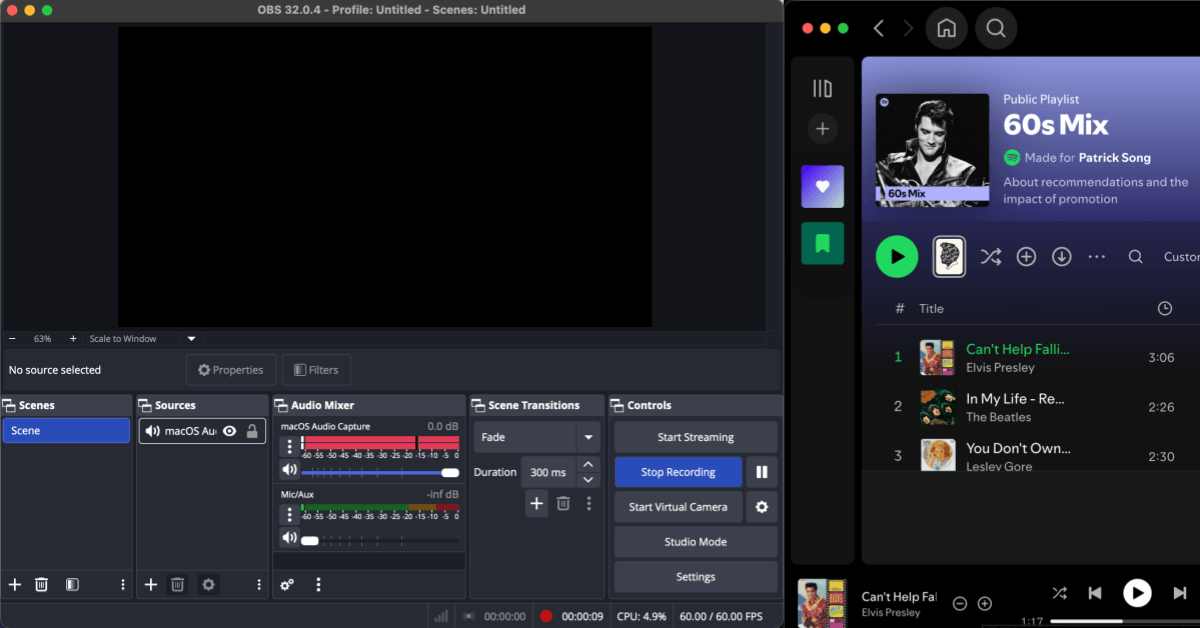
How Does It Work: Add "Display Capture" and "Audio Output Capture" as sources, play the Spotify tracks, adjust the recording area and audio channels, then start recording and save the video file.
Pros:
- Open-source and free to use
- Work on various operating systems
- Good for video recording and live streaming
Cons:
- Have a steep learning curve
- Not optimized for audio-only recording
- Offer limited functionalities for recording
OBS Studio is a free, open-source program designed primarily for screen recording and live streaming, but it can also be used to capture Spotify playback. By recording both your screen and system audio at the same time, OBS is particularly useful for saving Spotify video podcasts or other content where visuals are just as important as the audio.
Unlike dedicated Spotify recording tools, OBS focuses on flexible video and audio capture rather than music-specific features. It supports multiple video output formats and offers extensive recording settings, but it doesn't provide conveniences such as automatic track splitting, metadata tagging, or playlist recording.
Overall, OBS Studio is best suited for advanced users who need high-quality screen and audio recording rather than a simple tool for saving Spotify music. If your primary goal is recording podcasts or video content from Spotify, it's one of the strongest free options available.
Use it if
- You want to record Spotify video podcasts or visually rich content
- You need high-quality video and audio capture
- You are an advanced user comfortable with configuring recording sources and settings
Don't use it if
- You only need to record Spotify audio
- You want accelerated recording or one-click downloads
- You are a beginner looking for a simple, ready-to-use Spotify recorder
VideoSolo Screen Recorder
Best for: Users who want to record Spotify audio and video together with flexible, high-quality output, custom duration, and trimming options
Supported Devices & Installation: Windows 7/8/10/11 and macOS 10.12+; lightweight installer, easy setup, ready to start recording immediately
Recording Speed: Real-time recording (1X speed); no accelerated conversion, batch recording not supported
Output Format: MP3, M4A, WMA, CAF, FLAC, and more
Output Quality: Up to 320kbps
How Does It Work: Select "Audio Recorder"(or Video Recorder) mode, play the Spotify song, adjust system sound settings, then start recording. Trim and save the track after recording.
Pros:
- Supports recording audio from multiple streaming services
- Offers separate audio and screen recording modes
- Available to customize formats and parameters before outputting Spotify recordings
- Built-in trimming feature to adjust Spotify music recording duration flexibly
Cons:
- Unable to speed up the recording process
- Only 3 minutes of a song can be recorded under the free trial period
- Extra noise may easily be recorded while processing Spotify recordings
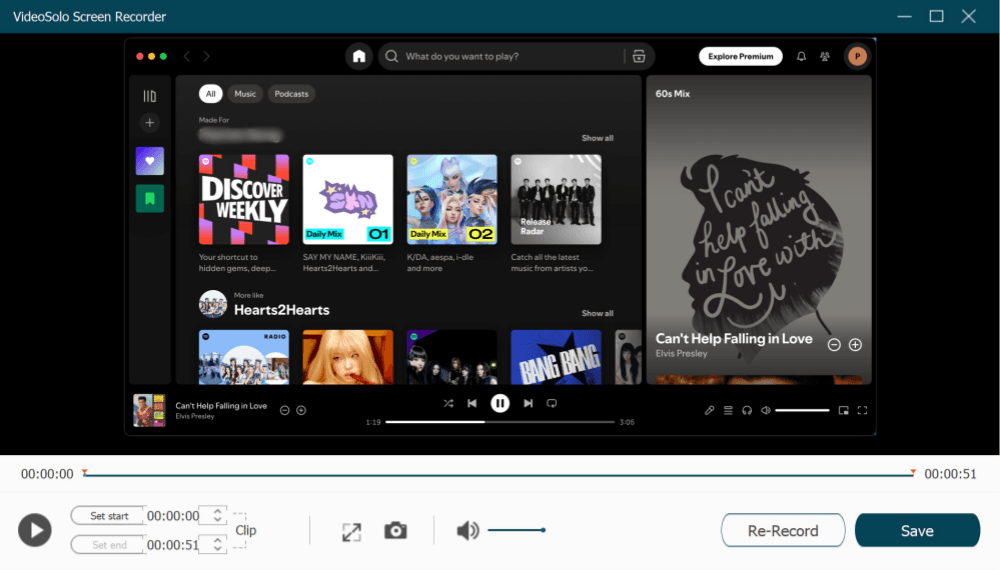
VideoSolo Screen Recorder is a flexible screen and audio recorder for users who want to capture Spotify audio, video podcasts, or short clips with custom recording settings. It lets you choose audio-only or screen recording mode, adjust output formats and quality settings, and trim recordings after capture.
However, it still records in real time and does not support accelerated recording, batch playlist recording, automatic track splitting, or Spotify metadata tagging. If you record multiple songs, the process will take as long as the playback itself, and background noise may be captured if your system audio settings are not configured properly.
VideoSolo offers email support and online guides. Its free trial only allows limited recording, so it is better suited for testing short clips than for saving full Spotify playlists.
Use it if
- You want flexible Spotify audio & video recording with trimming and custom output options
- You need high-quality recordings at up to 320kbps
- You are using Windows or macOS and want a simple, stable setup
- You want to record music from multiple streaming platforms
Don't use it if
- You need to save entire playlists or batch Spotify recordings
- You require accelerated recording or one-click full playlist capture
- You want fully automatic track splitting and metadata tagging
Apowersoft Free Online Audio Recorder
Best for: Users who want to record Spotify music or podcasts online without installing any software
Supported Devices & Access Requirements: Windows, macOS, iOS, and Android; browser-based tool that runs directly online with no installation required
Recording Speed: Real-time recording (1X speed); depends on internet stability and playback duration
Output Format: MP3
Output Quality: Standard MP3 recording quality
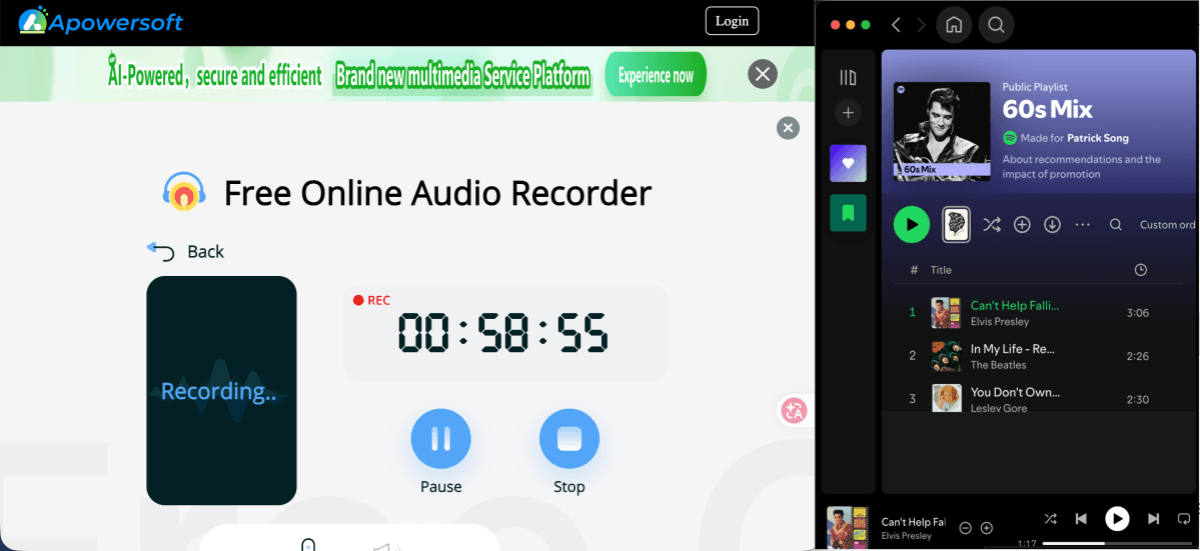
How Does It Work: Open the online tool in your browser, select system audio or microphone as the source, then play Spotify music. Click to start recording and download the MP3 file once finished. After recording, you can preview and download the MP3 file directly from your browser.
Pros:
- Support Windows, macOS, iOS, and Android
- Free to record songs and podcasts from Spotify
- Works directly in your browser
- Easy to use without software
Cons:
- Only support the MP3 audio format
- Record ads if you're a free listener
Apowersoft Free Online Audio Recorder is a browser-based tool that lets you record Spotify music or podcasts without installing any software. Simply open the recorder in your browser, choose your audio source, start Spotify playback, and save the recording as an MP3 file when finished. Its straightforward workflow makes it a convenient option for occasional recordings on different devices.
Because it runs entirely online, Apowersoft is easy to access from Windows, macOS, and other platforms with a supported browser. However, recordings are limited to MP3 format and are captured in real time. If you're using Spotify Free, advertisements will also be included in the recording.
Overall, Apowersoft is a practical choice for users who want a quick, installation-free way to record Spotify audio. While it lacks advanced features such as automatic track splitting, metadata tagging, or playlist recording, it works well for recording individual songs or podcast episodes without installing desktop software.
Use it if
- You want a free, online Spotify recorder without installing software
- You need basic MP3 recordings for casual use
- You only need to record occasional Spotify songs or podcasts
- You prefer a cross-device solution that works in any browser
Don't use it if
- You need lossless audio or multiple output formats
- You want fast batch downloads or accelerated recording
- You require advanced editing or automation features
Part 4. Best Spotify Recorders for Android & iPhone
Although most Spotify recording software is designed for desktop computers, there are still a few practical options for Android and iPhone users. If you prefer recording directly on your mobile device, these apps are worth considering.
AZ Screen Recorder
Best for: Android users who want to record Spotify music, podcasts, or video playback directly on their phones
Supported Devices: Android 10 and later (internal audio recording support depends on the device and Android version)
Recording Speed: Real-time recording (1× speed)
Output Format: MP4 (video with internal audio); extracted audio can be exported after recording using supported editing tools
Output Quality: Configurable recording quality up to HD/Full HD depending on device capabilities
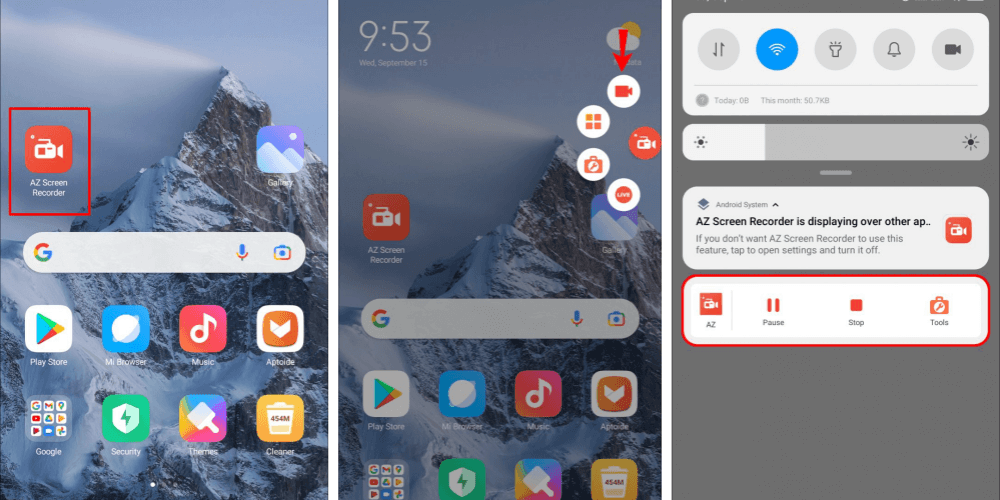
How Does It Work: Launch AZ Screen Recorder, enable Internal Audio recording (if supported on your device), start screen recording, and then play Spotify. Once finished, save the recording or trim it using the built-in editor.
Pros:
- Free and easy to use
- Records both Spotify audio and video playback
- Built-in trimming and basic editing tools
- Supports internal audio recording on compatible Android devices
- Regularly updated and widely supported
Cons:
- Records in real time only
- Internal audio recording is unavailable on some Android devices or apps
- No automatic track splitting, metadata tagging, or playlist recording
AZ Screen Recorder is one of the most popular screen recording apps for Android and works well for capturing Spotify playback on compatible devices. Unlike dedicated Spotify recorders, it records your screen together with internal audio, making it especially useful for saving Spotify video podcasts, Canvas animations, or music playback without using a computer.
The app includes adjustable recording quality, frame rate, and built-in trimming tools, allowing you to edit recordings before saving them. However, recording is limited to real-time playback and doesn't provide music-focused features such as automatic track splitting, ID3 metadata tagging, or playlist recording. Internal audio recording also depends on your Android version and device manufacturer, so availability may vary.
Overall, AZ Screen Recorder is an excellent choice for Android users who want a free and actively maintained recorder for Spotify content. While it isn't designed specifically for saving music libraries, it's a convenient option for recording individual songs, podcasts, or short clips directly on your phone.
Use it if
- You want to record Spotify playback directly on your Android phone
- You also need to capture Spotify video podcasts or on-screen content
- You prefer a free app that is actively maintained
- Your device supports internal audio recording
Don't use it if
- You want automatic track splitting or ID3 metadata tagging
- You need to record entire playlists efficiently
- You prefer dedicated Spotify downloaders or music converters for building an offline music library
iOS Built-in Screen Recorder
Best for: iPhone and iPad users who want a built-in way to record Spotify playback without installing additional recording apps
Supported Devices & Installation: iPhone and iPad running iOS 11 or later; built into iOS with no installation required
Recording Speed: Real-time recording (1× speed)
Output Format: Video file with AAC audio, depending on your iOS settings and export method
Output Quality: High-definition screen recording; quality depends on your device and iOS settings
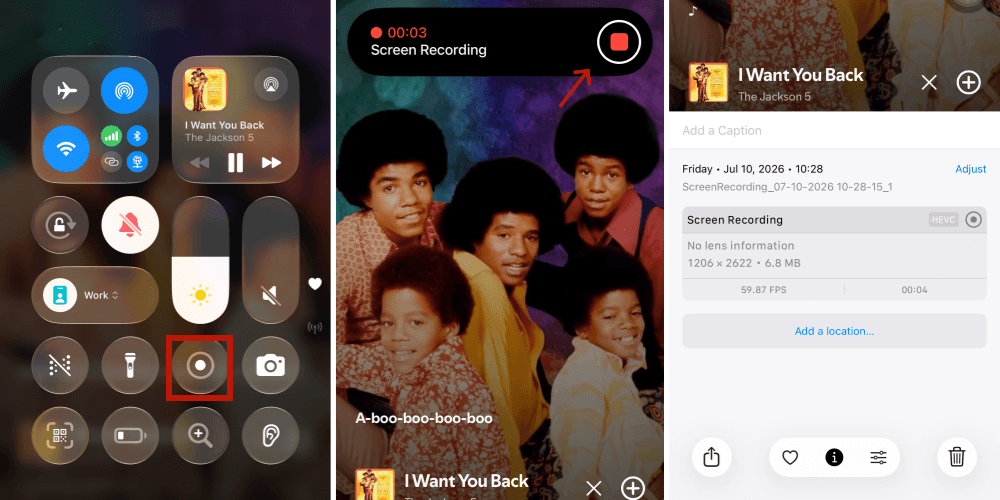
How Does It Work: Add Screen Recording to the Control Center, start recording, then play Spotify. Once finished, stop the recording and save the video to the Photos app. If you only need the audio, you can extract or edit it later using tools like GarageBand or other audio editors.
Pros:
- Built into iOS and completely free
- No additional apps required
- Records both Spotify playback and on-screen activity in one session
- Works well for recording songs, podcasts, or short clips
- GarageBand can be used to trim or edit the recorded audio
Cons:
- Records in real time only
- Saves recordings as video files instead of standalone audio
- No automatic track splitting, metadata tagging, or playlist recording
Instead of downloading a third-party recorder, iPhone users can simply use the built-in Screen Recording feature included with iOS. During our testing, it successfully captured Spotify playback while recording the screen, making it a convenient option for saving songs, podcasts, or other streaming content without installing additional software.
Although the recording is saved as a video file rather than a standalone audio file, you can extract the audio afterward or import the recording into GarageBand for trimming, editing, or adding effects. This makes the built-in workflow practical for users who only need to save occasional Spotify tracks, podcast clips, or short playback moments.
That said, screen recording still works in real time and isn't designed specifically for music archiving. It doesn't provide Spotify-focused features such as automatic track splitting, ID3 metadata preservation, or batch playlist recording. For recording entire playlists or building a permanent offline music library, a dedicated Spotify recorder or a Spotify music converter, if downloading is your primary goal, will be a much more efficient choice.
Use it if
- You want a free, built-in way to record Spotify on your iPhone or iPad
- You only record songs or podcasts occasionally
- You don't mind editing or extracting the audio afterward with GarageBand
Don't use it if
- You want standalone MP3 files immediately after recording
- You need automatic track splitting or metadata preservation
- You want to record entire playlists efficiently
Bonus Tip: Best Spotify Recorder Alternative - TuneFab
Best for: Users who want to save Spotify songs, playlists, or podcasts permanently without real-time recording
Supported Devices & Installation: Windows 7/8/10/11 and macOS 10.15+; lightweight desktop application with simple installation
Conversion Speed: Up to 35× faster than real-time recording with batch playlist conversion
Output Format: MP3, M4A, WAV, FLAC, AIFF, AAC, ALAC
Output Quality: Up to 320kbps, depending on source and output settings
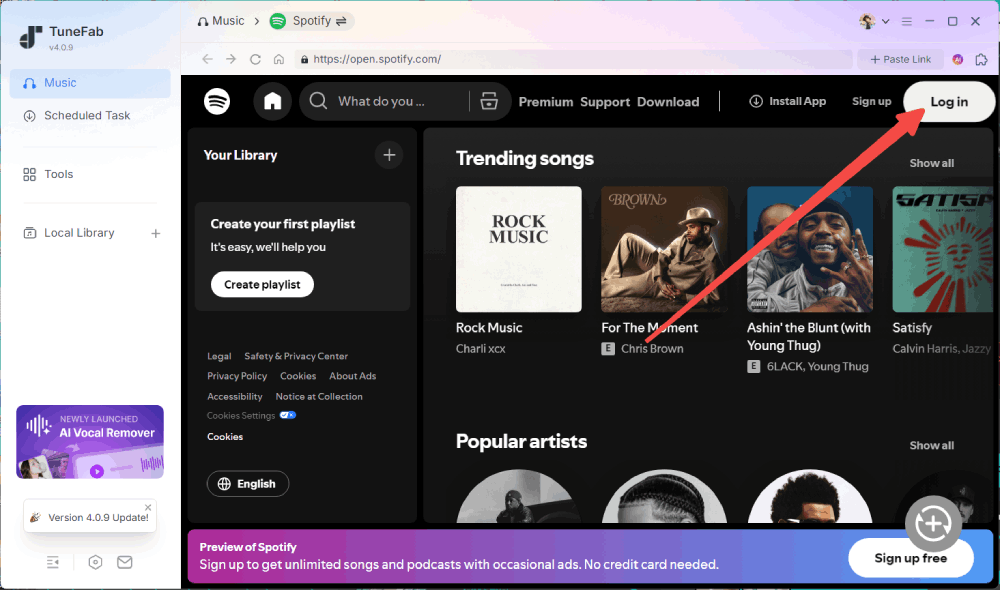
How Does It Work: By logging into your Spotify account in the Spotify web player, you can quickly batch download selected music files, convert them into various high-quality formats, and save them locally with full ID3 tags.
Traditional Spotify recorders work by capturing audio while it plays, which means every song must be recorded in real time. They also commonly lack features like batch recording, automatic track splitting, metadata preservation, and playlist management. If your goal is simply to keep Spotify music for long-term offline listening, a dedicated Spotify music converter can be a much more efficient solution.
Unlike conventional recorders, TuneFab Spotify Music Converter downloads and converts Spotify tracks directly through its built-in Spotify web player instead of recording playback. In our testing, a 42-minute playlist was completed in just over 2 minutes, while traditional recorders required the full playback time. Converted files also retained complete ID3 tags, including the title, artist, album, track number, and cover art, making offline music management much easier.
Overall, TuneFab isn't a traditional Spotify recorder—but for users who regularly save playlists, albums, or podcasts, it provides a faster, more automated workflow with consistent output quality and far less manual effort.
Use it if
- You want to download Spotify songs, playlists, albums, or podcasts quickly without a Premium account.
- You need high-quality audio files for offline playback.
- You want an all-in-one solution that handles batch downloads, automation, and cross-platform compatibility.
- You're looking for stable, reliable software with 24/7 support and easy setup.
Don't use it if
- You only need occasional single-track downloads.
- You rely solely on mobile devices without access to a PC.
- You don't mind lower audio quality or real-time recording speed.
FAQs
What should I do if there are ads when recording Spotify music?
If you are using the Spotify Free plan, ads will appear during music playback while recording. You can subscribe to Spotify Premium to enjoy an ad-free experience. Alternatively, you can use an effective Spotify ad blocker to filter out ads during playback.
Is it illegal to record music from Spotify?
Whether it is illegal depends on your purpose for recording and the laws of your region. Recording Spotify music for personal enjoyment or offline listening usually does not violate any laws. However, uploading the recorded audio to social media or publicly sharing it constitutes copyright infringement and is illegal. Therefore, if you record Spotify, avoid distributing them or using them for commercial purposes.
Can Spotify detect that I'm using recording software to capture music?
Unlike video streaming platforms, Spotify does not actively monitor whether users are using recording software. In most cases, if you record Spotify music by capturing the computer's audio signal or by playing it directly through the web player, rather than extracting audio from the Spotify app or through your account, Spotify will not be able to detect it.
Is there a Spotify recording website?
Yes, websites like Online Voice Recorder allow you to record Spotify music, but they also capture microphone input, which may affect audio quality. For cleaner recordings of Spotify songs, the browser extension Chrome Audio Capture is a good option. It records only the audio playing in the browser tab.
Conclusion
Choosing the right Spotify recorder ultimately depends on how you plan to use it.
If you only need to capture an occasional song, podcast, or short audio clip, free tools like Audacity, OBS Studio, and mobile recording solutions are often sufficient. Dedicated recorders such as Spytify, Cinch, and Audials One add useful features like automatic tagging, ad filtering, or faster recording workflows, but they still rely on real-time playback.
If your goal is to save large playlists for long-term offline listening, a Spotify music converter may be a better fit. As a recorder alternative, TuneFab Spotify Music Converter offers faster batch conversion, high-quality output, and automatic metadata preservation, making it a more efficient choice for frequent Spotify users.