

Although Spotify offers an offline playback feature, many users are still frustrated with the actual experience. This is because downloaded songs are locked within the official app and are not permanently accessible. So, more and more users are seeking reliable Spotify rippers. Whether you want to back up music to a USB drive, play it on an MP3 player, or use it for DJ mixes, there are various tools available.
But do they truly rip from Spotify? Which one is the best in 2026? To answer these, we compared the popular options for PC, Mac, Android, iPhone, and online, and compiled this list of 9 top Spotify rippers that best meet your needs.
What Is a Spotify Ripper? (Types Explained)
A Spotify ripper is a type of music tool designed to extract music from Spotify and save it into common audio formats such as MP3, M4A, WAV, or FLAC for offline use. With the right ripping tool, you can not only listen to Spotify songs offline without the official app restrictions, but also build a local music library for long-term offline access.
Spotify Ripper Types Compared: Real Rip, Matcher, Recorder, or Converter
You might not know that, based on how they process audio data, Spotify ripping tools can be categorized into several different types:
| Type | Audio Source | Speed | Accuracy | How It Works |
| Real Ripper/Music Converter | Spotify stream | Fast | High | Extracts audio from the Spotify app or web player |
| Metadata Matcher | YouTube, or third-party audio databases | Medium | Medium | Matches songs with online databases and downloads files |
| Spotify Recorder | Spotify stream | Slow | High | Records system audio while music plays |
| Online Ripper | External audio sources (usually YouTube) | Fast | Medium | Converts Spotify links without software |
How We Tested These Spotify Rippers
We used Spotify Free for most tests. For tools that claim Premium-only quality, we marked the claim separately and did not treat it as verified unless the output file was checked. Output quality was verified with MediaInfo where downloadable files were available.
Testing Environment
Operating Systems: Windows 11
Browser: Google Chrome
Test Account: Spotify Free
Output Setting: 320kbps MP3
Test Sample: Top 50 playlist (50 tracks)
Evaluation Criteria
- Source Accuracy: Does it actually download the exact track?
- Audio quality: Do the exported files through MediaInfo match the expected bitrate?
- Batch conversion speed: How long does it take to rip a playlist from Spotify?
- Metadata Preservation: Does it correctly retain album art, track numbers, and lyrics for offline music management?
- Stability: Whether the process runs into errors or fails to complete successfully
- Ease of use: Is it simple for beginners to get started quickly?
Best Spotify Rippers by Ripping Method
In this section, we have summed up our 50+ hours of hands-on testing. You can explore the details of each Spotify ripper to find the one that is perfect for you.
Desktop Spotify Converter: TuneFab Spotify Music Converter (Best for Playlist Ripping)
EDITORS' NOTE: In our July 2026 tests, TuneFab remained the most reliable Spotify ripper for PC and Mac for large playlist extraction.
Why We Picked TuneFab Spotify Music Converter
TuneFab Spotify Music Converter stands out for its built-in Spotify web player, allowing users to rip Spotify songs, albums, playlists, podcasts, and audiobooks directly without installing the Spotify app or syncing playlists. Plus, its fast batch ripping, high-quality output, and ID3 tag preservation make it a versatile Spotify ripper for both Free and Premium users. With support for multiple output formats, it helps you permanently keep your favorite Spotify music for offline playback, even after your Spotify subscription ends.
🔎 Spotify Ripping Process
TuneFab Spotify Music Converter delivers one of the most streamlined Spotify ripping experiences we've tested. There's no need to install the Spotify desktop app or deal with syncing issues. During testing, we were able to browse playlists, albums, and podcasts directly inside the software interface and simply add tracks to the converting queue.
The parsing process was fast and accurate. Once music was added, TuneFab automatically analyzed track information and prepared files for batch conversion. Even when importing large playlists with 50 songs, the program remained responsive and stable.
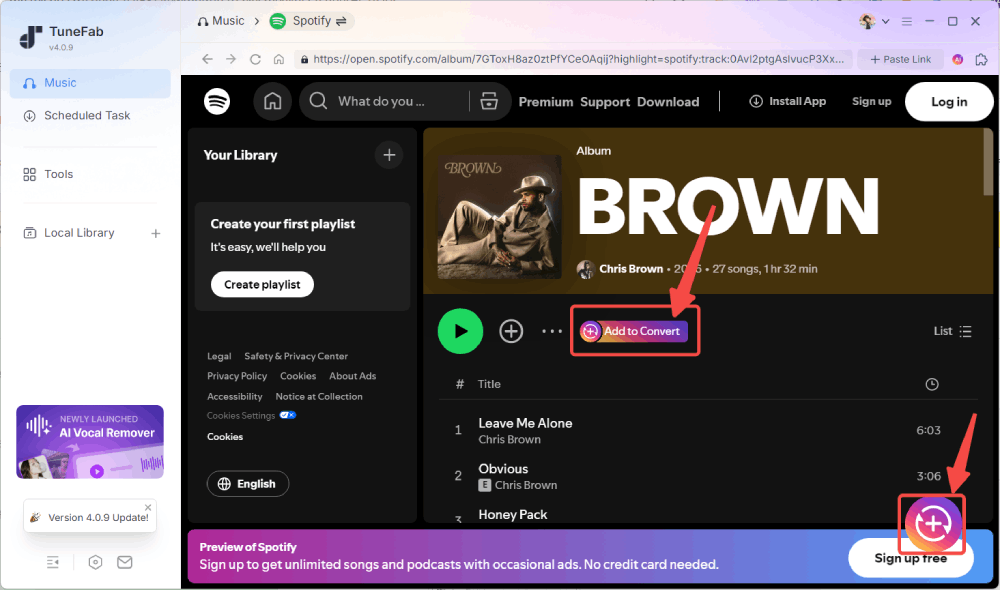
Audio customization was also easy to access. Users can quickly adjust output format (MP3), bitrate (up to 320 kbps), and sample rate (44.1kHz) before starting the rip. Applying settings to all tracks takes just one click, which is helpful for maintaining consistent quality across an entire playlist.
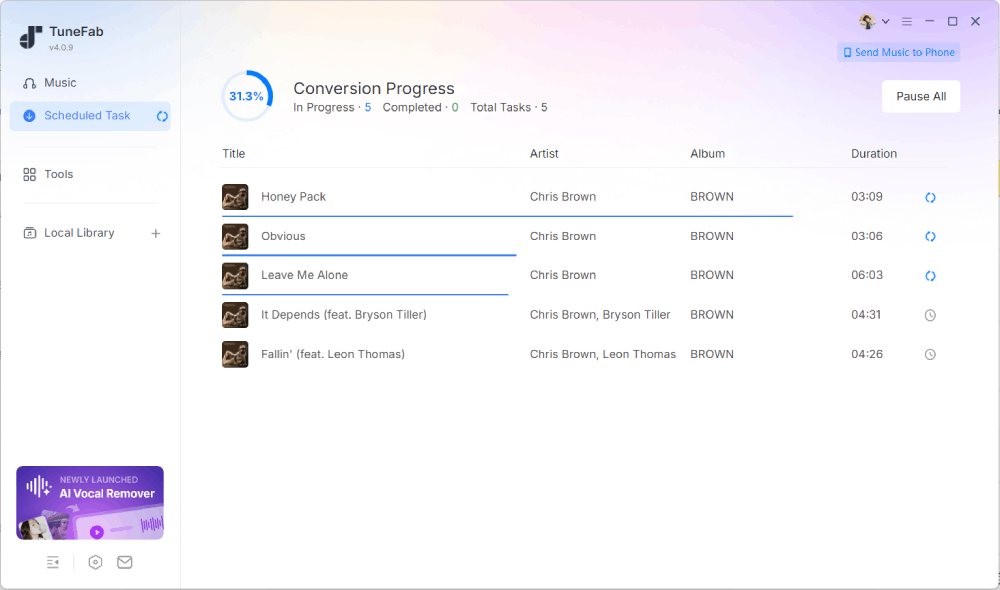
Conversion speed is where TuneFab clearly stands out. With hardware acceleration enabled, we observed conversion speeds reaching up to 35X faster than real-time playback. Unlike real-time capture tools, ripping does not require the song to play through entirely. Large playlists are completed in minutes rather than hours.
We verified the output files: in our 50-track test, the exported MP3 files matched the selected 320kbps setting, and we did not find wrong-track matches, and the ID3 tags were intact. If you are a DJ or music collector who needs a reliable archive, this is a practical option.
Key Features & Specs
| Supported Platform | Windows 11/10/8/7, macOS 10.15 or later |
| Installation Required | Yes, desktop software |
| Input Source | Spotify web player (no Spotify app needed) |
| Output Formats | MP3, M4A, WAV, FLAC, AIFF, AAC, ALAC |
| Output Bitrate | Up to 320 kbps |
| Sample Rate | Up to 48000 Hz |
| Playlist/Album Supported | Yes, batch conversion supported |
| Conversion Speed | Default 35X speed with hardware acceleration |
| Metadata Preservation | Full ID3 tags retained |
| Batch Conversion | Supported, multiple tracks at once |
| Custom Output Options | File naming, folder organization rules |
| User Interface | Clean, ad-free, intuitive drag-and-drop |
| Pricing | Free trial (3 full songs); paid license with hidden 10% off code: TFWELCOME |
Pros and Cons of TuneFab Spotify Music Converter
Pros:
- Downloaded the testing 50-song playlist without missing tracks or incorrect matches.
- Save audio files from 128kbps to 320kbps, ensuring high-quality offline playback.
- Maintain accurate ID3 tags and metadata for easy management.
- Batch conversion finished in ~ 10 minutes instead of requiring real-time playback.
- Output files play smoothly on Windows, Android phones, USB drives, and MP3 players.
- Clean and intuitive interface with no ads, making it beginner-friendly.
Cons:
- The free trial was limited to 3 complete song conversions.
- Software installation is required, not a true Spotify ripper online tool.
Pro Tip: After the free trial, if you want to keep using the software, don't miss TuneFab's hidden 10% off discount code: TFWELCOME – available for a limited time!
Recommended: 4.8 out of 5
Check the full review: TuneFab Spotify Music Converter Review: Is It Good & Safe?
Open-Source & CLI Rippers: Zotify (Best for Advanced Customization via Command Line)
These types of Spotify rippers are usually free and highly customizable, but they do come with a bit of a learning curve since they require some command-line know-how. Some fetch streams directly from Spotify, while others rely on metadata matching.
Why We Picked Zotify
Zotify earns its spot for offering full command-line customization and free Spotify ripping at up to 320 kbps (for Spotify Premium accounts). Unlike GUI-based tools such as TuneFab Spotify Music Converter, Zotify gives users deeper control over download behavior and configuration. However, its terminal-based workflow and occasional authentication issues mean it's best suited for experienced users.
🔎 Installation & Setup Process (Windows)
Installing Zotify on Windows isn't difficult, but it does require familiarity with PowerShell and command-line tools. The setup involves installing Scoop (a Windows package manager), then adding dependencies like Python, FFmpeg, and Git, followed by configuring pipx to manage the Zotify package itself.
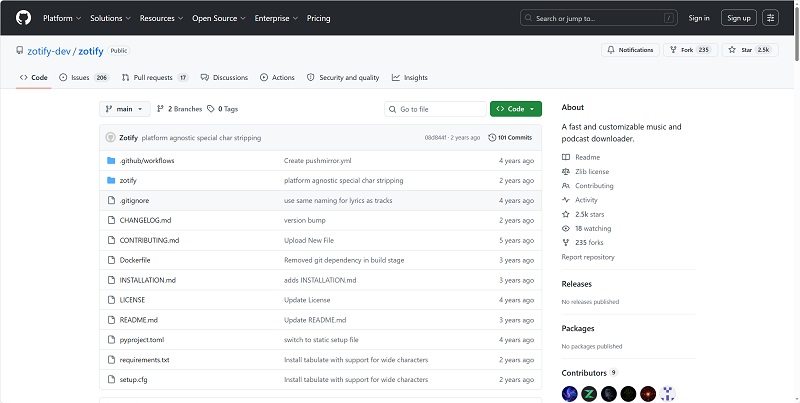
During testing, the process was manageable for users comfortable with CLI environments, but it's clearly more technical than installing standard desktop software. After reopening PowerShell to activate pipx, Zotify can be installed via command and accessed using zotify --help to view available options. Most documentation is provided through its GitHub README file.
Once installed, Zotify allows you to extract Spotify songs to MP3 for offline playback. However, compared to GUI-based tools, the entire workflow—from installation to command usage—has a steeper learning curve.
Key Features & Specs
| Supported Platform | Windows, macOS, Linux |
| Installation Required | Yes (Python environment & dependencies) |
| Audio Source | Spotify streams |
| Interface Type | Command-line (Terminal/CLI) |
| Output Format | MP3 only |
| Output MP3 Bitrate | Up to 320 kbps (Premium); 160 kbps (Free) |
| Playlist/Album Supported | Yes |
| Batch Download | Supported via command input |
| Metadata Preservation | Basic ID3 tags retained |
| Conversion Speed | Depends on system/network performance |
| Stability | May encounter login/authentication issues after inactivity |
| Pricing | Free (open-source) |
Note:
If you haven't used this Spotify music ripper for a long time, it may fail to work when you try to use it again. At this time, remember to enter your Spotify email address, not your username and password.
If you are less familiar with command-line interfaces or programming concepts, it's advisable for you to use another program with easier operation, like TuneFab Spotify Music Converter, instead.
Pros and Cons of This Free Spotify to MP3 Ripper
Pros:
- Rip Spotify songs to MP3 for free.
- Support Spotify to MP3 conversion up to 320kbps.
- Allow high customization via command lines.
Cons:
- Complicated to use.
- You may fail to rip Spotify songs if you don't log in for a long time.
- Ripped songs are limited to 160kbps if you are a free Spotify user.
Recommended: 4.5 out of 5
Metadata Matchers: SpotDL (Best Open-Source Alternative)
During our testing, we also found that some Spotify rippers did not perform as expected. These tools are free and popular, but they do not download from Spotify.
Why We Picked SpotDL
SpotDL earns its "Best Open-Source" label because it combines Spotify metadata matching with YouTube-based audio downloading. Unlike fully integrated rippers, it doesn't extract audio directly from Spotify's stream—instead, it locates corresponding tracks on YouTube and downloads them as MP3 files. This approach keeps it free and cross-platform, but audio quality depends heavily on the available YouTube source.
🔎 Installation & Spotify Ripping Process
Setting up SpotDL requires a few technical steps, as it runs through Python and the Command Prompt. First, you'll need to install Python 3.7 or later (making sure it's added to your system PATH). After that, SpotDL can be installed via pip install spotdl, followed by installing FFmpeg using the built-in spotdl --download-ffmpeg command.
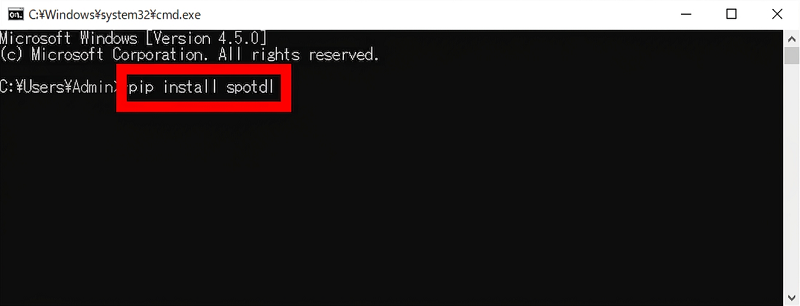
In our testing, the installation process was straightforward for users familiar with command-line environments, but it may feel intimidating for beginners. Once configured, ripping Spotify songs is as simple as entering a command with the Spotify track or playlist URL. SpotDL will then match the music via YouTube and download MP3 files at a default quality of 128 kbps (higher quality depends on source availability).
For users who prefer a more visual experience, SpotDL also offers a web UI version. While this makes the downloading process more intuitive, the initial setup still requires technical preparation.
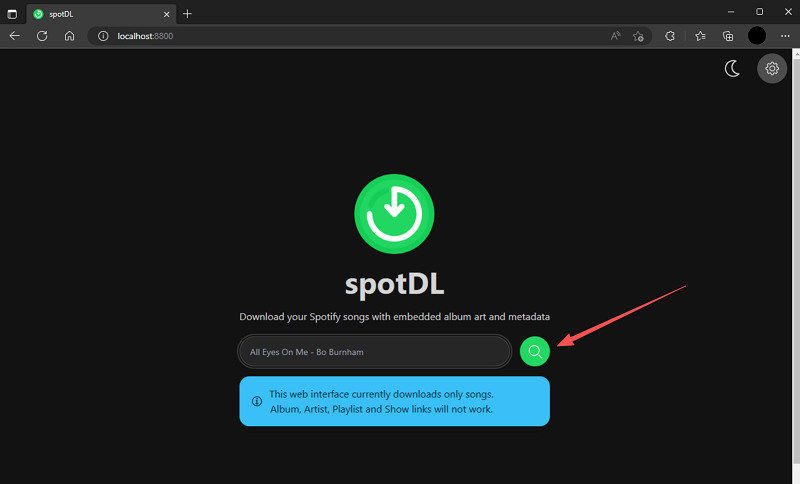
Overall, SpotDL's ripping workflow is efficient once installed, but the setup process demands more hands-on configuration compared to traditional desktop Spotify rippers. Additionally, we also noticed that some people are complaining about missing tracks or getting the wrong versions after ripping. While this Spotify audio ripper is free, it is advisable to use it with caution.
Key Features & Specs
| Supported Platform | Windows, macOS, Linux |
| Installation Required | Yes (Python + FFmpeg dependency) |
| Interface Type | Command-line (CLI) |
| Audio Source | YouTube (matched via Spotify metadata) |
| Output Format | MP3 |
| Output MP3 Bitrate | Up to 256 kbps (YouTube Music Premium); ~128 kbps standard |
| Playlist/Album Supported | Yes |
| Batch Download | Yes |
| Metadata Preservation | Yes (Title, Artist, Album, Cover Art auto-embedded) |
| Conversion Speed | Depends on network & YouTube availability |
| Pricing | Free (open-source) |
Pros and Cons of SpotDL
Pros:
- Rip Spotify songs and playlists to MP3 for free.
- Support various output formats such as MP3, M4A, and OPUS.
- Support multiple platforms, including Windows, macOS, and Linux.
- Automatically retrieve and embed Spotify metadata, including cover art and album name.
Cons:
- Complicated to install, requiring Python and FFmpeg installation.
- Only supports output quality up to 256kbps.
- Deliver inconsistent audio quality, depending on the YouTube source.
Recommended: 3.5 out of 5
Spotify Recorders: Leawo Music Recorder (Best for Flexible Audio Recording)
Unlike Spotify extractors, recorders capture whatever is playing on your sound card, but they are time-consuming and offer no batch processing.
Why We Picked Leawo Music Recorder
Leawo Music Recorder makes the list as a flexible system audio recorder that can capture Spotify playback as MP3 or WAV files. Instead of directly ripping Spotify streams, it records whatever is playing on your system sound card. This allows broader compatibility with multiple streaming platforms—but it also means recordings happen in real time without batch acceleration.
🔎 Spotify Recording Process
Recording Spotify music with Leawo Music Recorder is a fairly simple and traditional audio-capture workflow. After launching the program, you select the "Record Computer Audio" mode, which allows the software to capture any sound playing through your system. Once you start playing a Spotify track, you can immediately begin recording within the recorder interface.
Because it works through real-time audio capture, the recording speed matches the song's playback length. A 4-minute song takes 4 minutes to record. In our hands-on testing, its built-in ID3 tag editor worked well, so we could manually edit title, artist, and album information before exporting the file as an MP3 or WAV to the desktop.
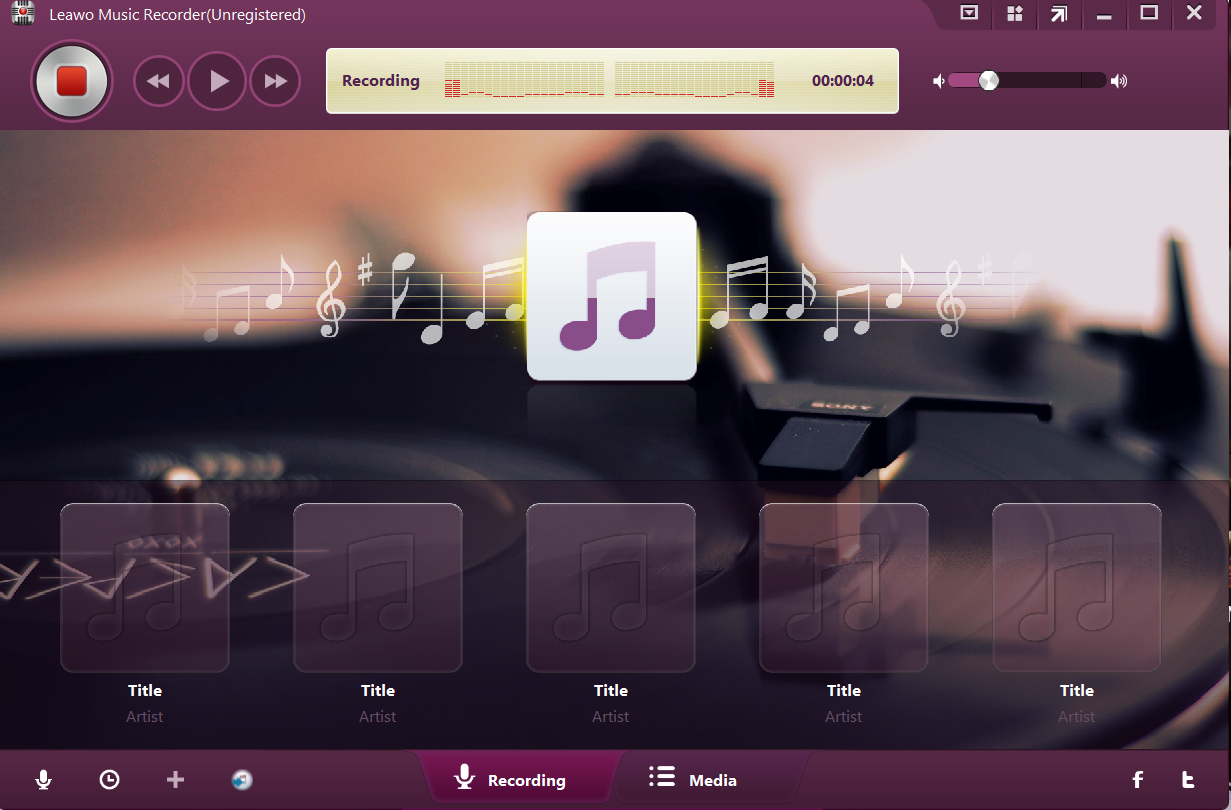
Overall, the process is easy to follow and beginner-friendly, especially with its built-in tag editor. However, since it relies on real-time recording and doesn't support acceleration or batch playlist ripping, it's more suitable for capturing individual songs. For large libraries, you'd better consider a Spotify playlist ripper like TuneFab Spotify Music Converter.
Key Features & Specs
| Supported Platform | Windows, macOS |
| Installation Required | Yes (desktop software) |
| Interface Type | Graphical user interface |
| Audio Source | System audio recording |
| Output Formats | MP3, WAV |
| Output MP3 Bitrate | Up to 320 kbps |
| Playlist/Album Supported | No (manual recording only) |
| Batch Download | No |
| Metadata Preservation | Can auto-add basic ID3 tags |
| Conversion Speed | Real-time recording only |
| Additional Compatibility | Supports recording from YouTube, AOL Music, Last.fm, etc. |
| Customer Support | Email support & documentation |
| Pricing | Paid software (trial available) |
Pros and Cons of Leawo Music Recorder
Pros:
- Capture songs from Spotify and other streaming platforms.
- Easy-to-grasp recording process for Spotify music ripping;
- Good quality preserved when system settings are correct.
- Available to edit ID3 tags as you desire.
Cons:
- No recording speed-up to save time in processing music recording;
- Can't process batch recording simultaneously;
- No auto-saving feature to back up the recording and preset sudden error to lose the music.
- System sounds can be captured accidentally.
Recommended: 4 out of 5
Online Spotify Rippers: Easy, but Often the Riskiest
Some online Spotify rippers claim to download Spotify songs as local MP3 files by pasting a URL. However, many of them do not clearly disclose the real audio source, so they should be treated as convenient but higher-risk options. During our 2026 evaluation of multiple Spotify ripper free and web-based tools, we found several recurring issues:
- ⚠ Incorrect or mismatched audio sources. There were wrong songs or remixed versions instead of the original tracks.
- ⚠ Low-bitrate output quality, often below 128kbps, far lower than expected 320kbps MP3.
- ⚠ Frequent batch conversion failure, especially for large Spotify playlists.
- ⚠ Excessive ads and pop-up redirects, sometimes redirecting to unsafe external pages.
- ⚠ Unstable performance. Many online Spotify rippers stop working after Spotify updates.
- ⚠ Metadata missing. Most of them only retained the basic ID3 tags. Some even add website watermarks to the filenames.
As a result, they are better suited for occasional single-track downloads, rather than long-term use. Below are 2 working free Spotify rippers online in 2026.
TuneFab Spotify Ripper Online (Best for Secure Online Playlist Downloads)
Why We Picked It
Unlike most online Spotify rippers, TuneFab Spotify Ripper Online is not an anonymous website funded by pop-up ads. It is backed by the same team behind the desktop Spotify ripper for PC we rated 4.8/5 previously.
TuneFab Spotify Ripper Online stands out among web-based rippers for offering a clean, ad-light interface and more advanced functionality than most free download sites. Unlike many online tools that limit quality or block playlist parsing, this platform supports high-quality MP3 output (up to 320 kbps) and allows users to download full playlists and albums more efficiently.
🔎 Spotify Ripping Process
With TuneFab Spotify Ripper Online, the ripping workflow is clean and efficient. You simply copy the URL of a Spotify song, playlist, or album, log in to the web platform, and paste the link into the converter. The tool quickly analyzes the content and prepares it for conversion.
Once processing is complete, all selected tracks are packaged together for download, typically as a ZIP file. This makes it convenient to save entire playlists or albums in one go rather than downloading tracks individually.
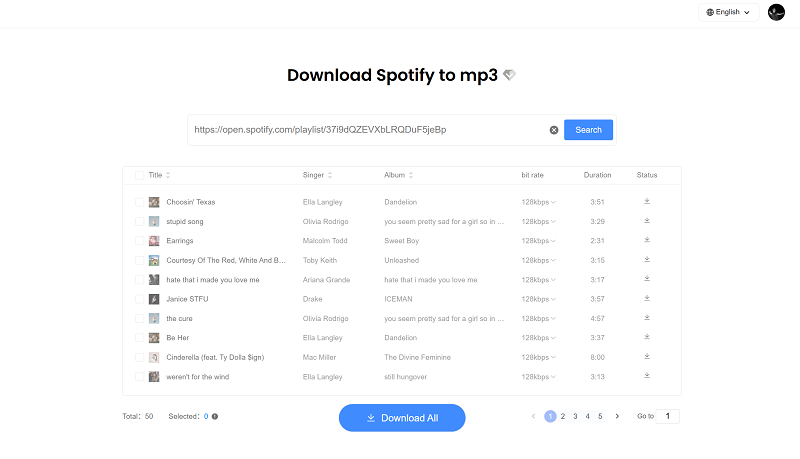
Overall, the process is streamlined and user-friendly, with clear on-screen guidance and minimal steps. The batch handling and automatic packaging significantly improve efficiency compared to many other online Spotify rippers.
Key Features & Specs
| Supported Platform | Web-based (Windows, macOS, Android, iOS) |
| Installation Required | No |
| Interface Type | Online website |
| Input Method | Paste Spotify track, album, or playlist URL |
| Audio Source | Spotify stream |
| Output Format | MP3 |
| Output MP3 Bitrate | 128 kbps – 320 kbps selectable |
| Playlist/Album Supported | Yes |
| Batch Download | Yes (playlist & album parsing supported) |
| Metadata Preservation | Full ID3 tags retained |
| Conversion Speed | Depends on network & server load |
| User Experience | Clean interface, minimal ads |
| Pricing | Free trial and subscriptions provided |
Pros and Cons
Pros:
- Clean interface without any listed or pop-up ads;
- Deliver the highest 320kbps to download Spotify songs to ensure the best streaming experience;
- Compatible with playlist and album conversion as well as batch downloading;
- Speedy music resolving and downloading performance ensured.
Cons:
- The service is not totally free.
- Process up to 10 songs at a time.
Recommended: 4.9 out of 5
SpotifyMate (Best for Easy Browser-Based Downloads)
Why We Picked It
SpotifyMate is a long-running online Spotify to MP3 converter known for its simple workflow and free access. Unlike many short-lived download sites, it has remained relatively stable and continues to allow users to paste Spotify links and download MP3 files directly from their browser. It also provides the option to download album cover images separately as JPG files.
🔎 Spotify Ripping Process
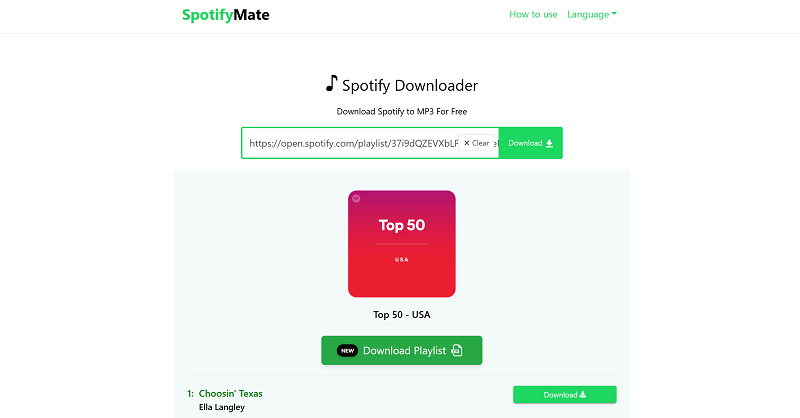
Using SpotifyMate is simple and requires no installation. You just copy a Spotify song link, paste it into the website's search bar, and click "Download." The tool will quickly parse the link and generate an MP3 download option for you.
After clicking "Download MP3," you may briefly be redirected to an advertisement page. Once you close it, the file will automatically begin downloading to your browser's default downloads folder.
Overall, the process is easy to understand and beginner-friendly. While the occasional ad redirect can slightly interrupt the experience, the actual downloading steps are straightforward and suitable for quickly extracting individual Spotify tracks.
Key Features & Specs
| Supported Platform | Web-based (Chrome, Firefox, Edge, Safari; desktop & mobile) |
| Installation Required | No |
| Interface Type | Online website |
| Audio Source | Not mentioned |
| Input Method | Paste Spotify track, album, or playlist URL |
| Output Format | MP3 |
| Output MP3 Bitrate | Up to 128 kbps |
| Playlist/Album Supported | Yes |
| Batch Download | Limited (may require downloading tracks individually) |
| Metadata Preservation | Yes (ID3 tags retained) |
| Album Cover Download | Yes (JPG format) |
| Conversion Speed | Depends on network & server performance |
| Pricing | Free |
Pros and Cons of SpotifyMate
Pros:
- Easy and totally free to use
- Supports many browsers and devices
- Rip music album cover art as well
Cons:
- Doesn't support downloading playlists and albums in bulk
- Only rip Spotify songs at 128kbps
- Ads pop up when ripping songs
Recommended: 3.0 out of 5
Mobile Quick Solutions: Convenient, but They Can Stop Working Anytime
Apart from online tools, we also found quick tools for Spotify ripping on Android and iPhone. Keep in mind, though, most of them rely on third-party services or public APIs, meaning they can stop working without warning whenever Spotify updates its security measures.
Telegram SpotifySavesBot (Best for Free Mobile Downloads)
Why We Picked It
Telegram SpotifySavesBot offers a quick, app-based solution for mobile users who want to download Spotify tracks without installing desktop software or visiting third-party websites. By simply sending a Spotify track URL to the Telegram bot, users receive an MP3 file directly inside the chat. The process is straightforward and entirely free, making it appealing for casual downloads.
🔎 Spotify Ripping Process
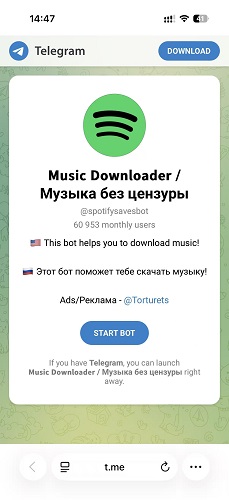
Using SpotifySavesBot on Telegram is one of the simplest mobile-based methods to extract Spotify tracks in our test pool. After adding @spotifysavebot to your Telegram contacts, you only need to copy a Spotify song link and send it directly in the chat. The bot automatically analyzes the URL and processes the track for you.
Within a short time (depending on server load), the bot replies with a converted MP3 file inside the chat thread. You can then tap the file to download and save it locally on your phone for offline playback.
The overall workflow is streamlined and beginner-friendly for mobile-first audiences. However, our testing confirmed that the bot only supports single-track processing with no playlist batch ripping, and offers limited audio quality around 128kbps. This makes it only fit for quick, casual downloads rather than full playlist extraction.
Key Features & Specs
| Supported Platform | Telegram app (Android, iOS, Windows, macOS) |
| Installation Required | Telegram app required |
| Interface Type | Chatbot (via @spotifysavebot) |
| Input Method | Send Spotify track URL in chat |
| Audio Source | YouTube and third-party platforms |
| Output Format | MP3 |
| Output MP3 Bitrate | Up to 128 kbps |
| Playlist/Album Supported | No (single tracks only) |
| Batch Download | No |
| Metadata Preservation | Basic metadata retained |
| Conversion Speed | Depends on bot/server response time |
| Pricing | Free |
Pros and Cons of Telegram SpotifySavesBot
Pros:
- Only by sending URLs to get MP3 audio files automatically;
- No hidden fee is required to rip Spotify Music;
- No need to install third-party apps or extensions anymore;
- High efficiency ensured.
Cons:
- Can't rip Spotify playlists in bulk.
- ID3 info can't be preserved;
- Sudden failures will occur when the bot can't fetch exact data.
Recommended: 3 out of 5
SpotiFlyer (Best Free Option for Android)
Why We Picked It
SpotiFlyer earns its place as a free Android-based Spotify ripper that supports high-quality MP3 downloads (up to 320 kbps). Designed primarily for mobile users, it allows you to download Spotify tracks for free directly to your Android device without needing a desktop computer. In addition to Spotify, it also supports other streaming platforms like SoundCloud and YouTube Music, making it a versatile mobile downloader.
🔎 Spotify Ripping Process
Using SpotiFlyer on Android is fairly direct once the app is installed. After downloading it (commonly via GitHub) and launching it on your device, you simply copy the shareable link of a Spotify song or playlist from the Spotify app and paste it into SpotiFlyer's input field. Tapping the download button starts the extraction process immediately.
Downloaded tracks are saved locally on your Android device (typically under /Music/SpotiFlyer/), making them accessible for offline playback through any music player. The interface is minimal and easy to navigate, which makes the workflow beginner-friendly and convenient for mobile users.
However, since SpotiFlyer relies on matching and syncing tracks from alternative sources, occasional download failures may occur. While it supports high-quality MP3 output (up to 320 kbps), it's better suited for individual downloads rather than large, stable batch conversions.
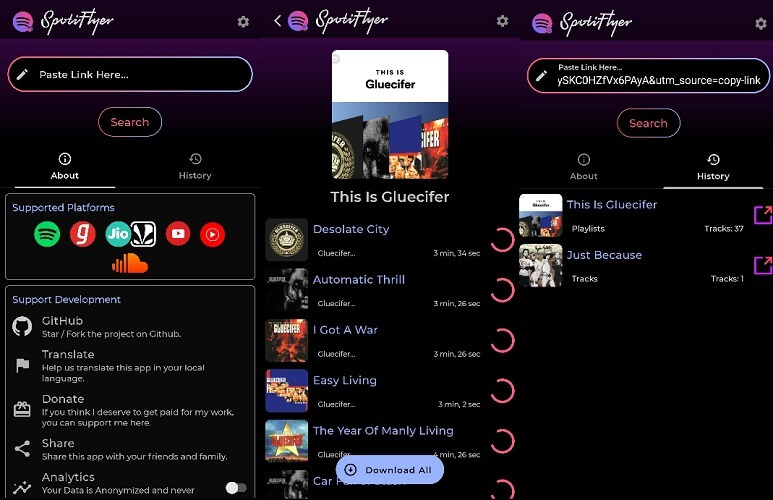
It is worth noting that SpotiFlyer has not been updated for quite some time. As a result, we found that this Spotify ripper app struggled to process newer releases during our testing.
Key Features & Specs
| Supported Platform | Android |
| Installation Required | Yes (Android app/APK) |
| Interface Type | Mobile app |
| Input Method | Paste Spotify track URL |
| Audio Source | YouTube and YouTube Music |
| Output Format | MP3 |
| Output MP3 Bitrate | Up to 320 kbps |
| Playlist/Album Supported | No (single tracks only) |
| Batch Download | No |
| Metadata Preservation | Yes (ID3 tags retained) |
| Additional Platform Support | Spotify, SoundCloud, YouTube Music, etc. |
| Conversion Speed | Depends on network performance |
| Pricing | Free |
Pros and Cons of SpotiFlyer
Pros:
- It's free for ripping Spotify tracks, Spotify podcasts, and more.
- Support ripping music from Spotify to MP3 at 320kbps quality.
- It can keep the ID3 tags for your ripped songs.
Cons:
- It's somehow complicated and time-consuming to copy the links of songs from Spotify.
- It cannot offer a batch-ripping feature.
- Sometimes, it may fail to rip some songs.
Recommended: 3.9 out of 5
Spotifydl Shortcut (Best Free for iOS)
Why We Picked It
Spotifydl Shortcut is a free iOS automation shortcut that lets users extract Spotify songs directly on their iPhones. Built using Apple's Shortcuts app (available from iOS 12 and later), it enables quick actions to process Spotify track links and convert them into MP3 files. For iOS users looking for a lightweight way to extract Spotify songs without installing desktop software, this shortcut-based method offers a convenient alternative.
🔎 Spotify Ripping Process
Using Spotifydl Shortcut through Apple Shortcuts provides a lightweight way for iPhone users to extract Spotify songs without installing desktop software. After adding the shortcut to your device, it appears directly inside the Shortcuts app and can be triggered at any time.
To rip music, you simply copy a Spotify track or playlist link from the Spotify app, open the Spotifydl shortcut, and paste the URL when prompted. The shortcut then processes the link and begins extracting the songs. Once completed, the MP3 files are saved to the Shortcuts folder in iCloud Drive (usually under a folder like "spotifydl.xyz"), where you can access or move them for offline playback.
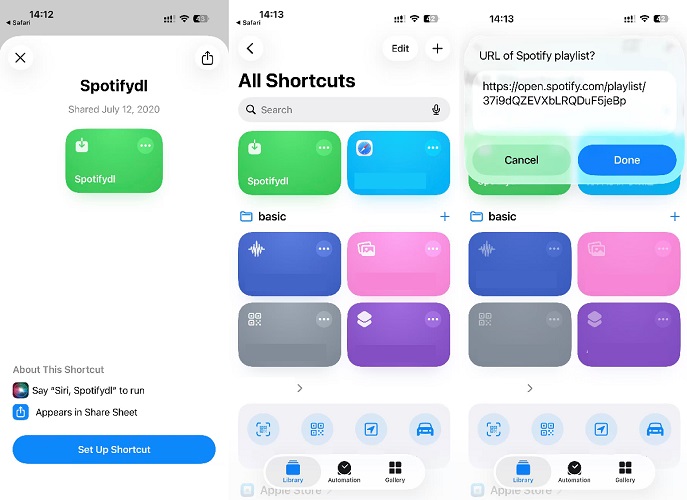
Overall, the workflow is relatively smooth for users familiar with iOS automation. It feels more integrated than browser-based tools, but it may require some initial setup and manual confirmation steps. While convenient for casual use, stability and large-scale batch extraction can sometimes be limited compared to desktop-based solutions.
Key Features & Specs
| Supported Platform | iOS 12 or later (via Apple Shortcuts app) |
| Installation Required | Yes (install Spotifydl Shortcut) |
| Interface Type | iOS Shortcut automation |
| Input Method | Paste Spotify track or playlist URL |
| Audio Source | YouTube |
| Output Format | MP3 |
| Output MP3 Bitrate | Up to 320 kbps |
| Playlist/Album Supported | Yes |
| Batch Download | Limited (may process tracks sequentially) |
| Metadata Preservation | Basic ID3 tags retained |
| Conversion Speed | Depends on network & processing time |
| Pricing | Free |
Pros and Cons of Spotifydl
Pros:
- Support ripping Spotify music to MP3 on iOS devices with 320kbps high quality.
- Easy to use, no matter if you are a newbie or a veteran.
Cons:
- Just can rip a few songs.
- No other music formats are available.
- Required to install the Spotify app.
- Fail to rip the album from Spotify.
- Unable to preserve the ID3 tags and metadata.
Recommended: 3.5 out of 5
Common Spotify Ripper Problems Users Actually Report
Based on community feedback and our own testing, here are the top complaints we found:
- Not a true Spotify ripper: Many tools actually match songs from YouTube or other third-party sources instead of ripping directly from Spotify.
- Wrong songs or versions: You may get a remix, live recording, karaoke version, or an entirely different track.
- Fake 320 kbps claims: Some tools advertise 320 kbps output but simply re-encode lower-quality audio.
- Playlist download failures: Free online tools and mobile apps often struggle with large playlists or albums.
- Stops working after updates: Online tools, Telegram bots, and GitHub projects may be inaccessible when Spotify changes its API or security measures.
Spotify Ripper Comparison: Source, Accuracy, Quality, Batch, Risk
If you're still unsure which Spotify song ripper is the best fit for you after reading the features and descriptions above, take a look at the comparison table below. We've compared some key factors that a great ripper should have to help you make a quick decision.
| Spotify Ripper | Actual Audio Source | Verified Quality | Track Match Accuracy | Metadata Accuracy | Who It's For | Not ideal for: |
| TuneFab Spotify Music Converter | Direct stream from Spotify | Up to 320 kbps confirmed (MediaInfo) | High (no wrong matches in testing) | High | Spotify Free/Premium users, DJs, music collectors, MP3 player/USB offline archive builders | Users looking for a completely free Spotify ripper |
| Zotify | Direct stream from Spotify | 320kbps(Premium)/160kbps(Free) | High | High | Linux users, GitHub open-source fans, tech users familiar with Terminal | Total beginners, drag-and-drop GUI lovers, users needing official long-term support |
| SpotDL | YouTube Match | Up to 256kbps (YouTube Premium only) | Medium | High | Open-source enthusiasts and tech-savvy users who are comfortable with command-line tools. | Beginners, GUI users, Users requiring true 320kbps Spotify audio extraction. |
| Leawo Music Recorder | System audio capture | Up to 320kbps (claimed) | High | Limited | Casual one-off track recording, multi-stream platform listeners | Large library bulk downloaders, users needing fast, accelerated conversion. |
| TuneFab Spotify Ripper Online | Direct stream from Spotify | Up to 320kbps (verified) | High | High | Users preferring online Spotify ripper with no desktop installation, browser-based batch downloaders | Users requiring multi-format output or regularly ripping large libraries |
| SpotifyMate | YouTube Match | Up to 128kbps (verified) | Medium | Medium | Beginners want a quick, free way to download occasional single tracks directly into their browser. | Users needing 320kbps quality, playlist batch downloads, or multiple output formats. |
| Telegram SpotifySavesBot | YouTube Match | 128kbps (varies) | Low | Medium | Telegram users who need a quick way to rip a single Spotify track on mobile. | Users who need batch downloads, high bitrate audio, or reliable long-term service. |
| SpotiFlyer | YouTube Match | 256kbps (claims 320kbps) | Medium | Medium | Android users seeking a free, open-source ripping app for Spotify and more platforms. | iOS users, or anyone needing stable playlist batch downloads and official support. |
| iOS Shortcut (Spotifydl) | YouTube Match | 96 - 320 kbps (varies) | Low | Medium | iPhone users familiar with Shortcuts automation who want a free Spotify playlist download | Users seeking a fully automated, stable, one-click Spotify playlist downloader. |
FAQs About Spotify Music Ripper
Is it legal to use a Spotify Ripper?
Spotify’s Terms of Use do not allow users to copy, rip, record, or redistribute Spotify content outside the official app. Laws may vary by region, so this article does not provide legal advice. Use any Spotify ripper only for personal evaluation and check local copyright rules before proceeding. To stay safe, always check your local copyright laws and Spotify's Terms of Service beforehand.
Is Spotify Ripper safe?
It depends on the type of Spotify ripper you choose. Typically, desktop rippers like TuneFab Spotify Music Converter are generally more reliable. Some free online tools rely on third-party servers, display excessive ads, or redirect users to unrelated websites.
What kind of Spotify Ripper is the best: desktop, online, or mobile?
Both desktop and mobile Spotify rippers can meet basic needs, but desktop rippers can meet your basic need to extract music from Spotify. However, using a desktop is generally better due to its larger memory capacity. Ripped songs stored on your phone can quickly consume your limited storage space. Additionally, mobile rippers may be banned easily or lack maintenance, so they may fail to rip some songs from time to time.
For these reasons, using a desktop tool like TuneFab Spotify Music Converter is a great option. If you are looking for a more flexible solution to extract specific parts of a Spotify song and save it as a file to enjoy Spotify offline without premium or for use in other software on your devices, a music recorder might be a suitable choice. However, this method can be time-consuming, as it typically does not offer speed-up modes or batch recording features. For optimal efficiency in ripping Spotify music, TuneFab Spotify Music Converter remains the best choice.
Why do some Spotify rippers download the wrong songs?
Tools categorized as metadata matchers do not extract Spotify audio directly. They only read track names and search YouTube for matching audio. This can result in incorrect versions such as covers, remixes, or live recordings.
Can I burn Spotify music to a CD after ripping it?
Of course, you can burn music from Spotify to CD after all the limitations from Spotify are removed by TuneFab Spotify Music Converter. Then, you can use iTunes, Windows Media Player, or VLC to burn Spotify songs onto a CD.
Final Verdict: Which Spotify Ripper Type Should You Choose?
The best Spotify ripper for you depends on your priorities. Here's our final guidance: For stable batch conversion, TuneFab Spotify Music Converter. It delivers batch downloading functionality and handled our test playlist successfully at 320kbps; larger libraries may still depend on account, network, and software status. If you are a developer or CLI user and want a highly customizable open-source Spotify ripping tool, Zotify is worth trying — but only if you understand its setup, account requirements, and stability limits.
If you prefer software-free options, you are also able to select an online tool, web browser extension, and even a mobile app to help! Now, just pick the ideal one you need and try!