

Apple Music downloads are protected, so they can normally only be played within the Apple Music app while your subscription remains active. That's why you may look for an Apple Music ripper to save songs as local files for offline listening. However, you'll soon discover that there's no single type of Apple Music ripper. Some tools convert tracks into audio files, others record playback in real time, while some work through online download links or open-source GitHub projects.
In this guide, we compare several Apple Music ripping methods based on hands-on testing where applicable and practical research for methods we did not test directly. Rather than listing dozens of similar tools, we'll explain how each approach works, where it performs well, its limitations, and which option is best suited to different needs.
Note: Is It Legal to Rip Apple Music?
Apple Music's Terms of Use and local copyright laws may restrict how downloaded or recorded content can be used. This guide is for informational purposes only and does not provide legal advice. Always make sure your use complies with applicable laws and Apple's terms.
- Quick Comparison of Apple Music Ripper Methods
- How We Tested These Apple Music Rippers
- Method 1. Desktop Apple Music Converter - TuneFab 🔥
- Method 2. Online Apple Music Rippers - APLMate
- Method 3. Desktop Screen Recorder - OBS Studio
- Method 4. GitHub Apple Music Ripping Tools
- Final Verdict: Which Is the Best Apple Music Ripper for You?
- FAQs About Apple Music Rippers
Quick Comparison of Apple Music Ripper Methods
There isn't a single best Apple Music ripper for everyone. The right choice depends on what you actually need — whether it's occasional background recording, quick testing, or building a long-term offline music library. Below is a practical comparison based on common user scenarios.
| User Need / Scenario | Desktop Converter (TuneFab) | Online Ripper (APLMate) | Screen Recorder (OBS) |
| Free to use | ⚠️ Free version supports limited full-track downloads | ✅ Completely free | ✅ Completely free |
| Installation required | ✅ | ❌ | ✅ |
| Batch download playlists | ✅ Supported | ❌ Not supported | ❌ Not supported |
| Audio-only output (MP3, FLAC, etc.) |
✅ Multiple audio formats available | ⚠️ MP3 Only | ❌ Exports as video (MP4/MOV) |
| Maintain consistent audio quality | ✅ Output settings customizable | ❌ No output settings | ⚠️ May vary |
| Long-term music collection or backup | ✅ More practical | ❌ Not ideal | ❌ Not ideal |
| Ease of use | ✅ Built-in web player, direct add-to-convert | ✅ Easy copy-and-paste workflow | ⚠️ Requires setup |
How We Tested These Apple Music Rippers
To keep this comparison as practical as possible, we evaluated each Apple Music ripping method using the same Apple Music account and real playback scenarios where applicable. Rather than relying solely on official feature lists, we focused on the actual user experience and, whenever possible, verified the exported files.
During testing, we paid particular attention to:
- Whether the tool could successfully rip or record Apple Music tracks
- Supported output formats and exported file types
- Batch download or playlist support
- Exported file information and metadata preservation, where applicable
- Trial limitations or failed recording/downloading attempts
Now, let's dive into those Apple Music ripping methods and see which way best suits your needs.
Method 1. Desktop Apple Music Converter - TuneFab 🔥
- Platform tested: macOS
- Test content: 3 Apple Music tracks
- Conversion result: All tracks were successfully exported
- Output format: MP3 as tested; it supports FLAC, WAV, and ALAC as well
- Time taken: About 25 seconds for 3 songs
- Batch support: Supported
- Output checked: Playable audio in our selected format with preserved metadata
One practical way to rip Apple Music is by using a desktop music converter. Unlike screen recording, a converter processes tracks directly and exports them as local files. This method supports batch conversion, customizable output formats, and more stable results, making it more suitable for users who want to build a personal offline music library.
We tested TuneFab Apple Music Converter, a desktop tool available for Windows and macOS. According to its official description, the software supports exporting Apple Music tracks to MP3, FLAC, WAV, ALAC, M4A, and AIFF while preserving ID3 metadata. In our test, we used the MP3 output option and confirmed that the exported files were playable and retained basic metadata.
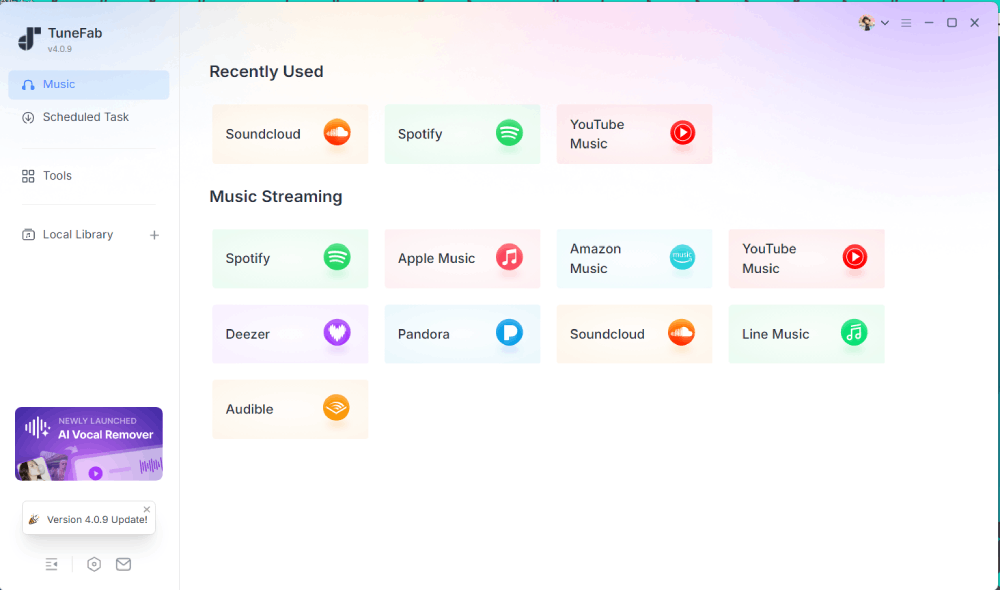
Step 1. After installation, the program opened to a platform selection menu listing multiple streaming services. We selected "Apple Music".
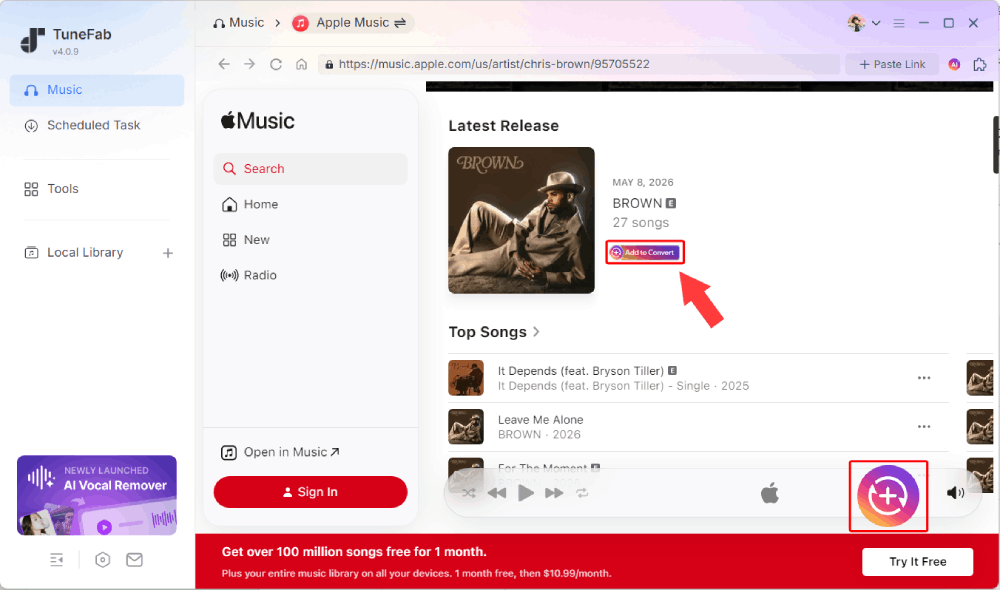
Step 2. The built-in Apple Music web player loaded automatically. After logging in with an Apple ID, we searched for songs as usual. Hovering over a track displayed an "Add to Convert" option.
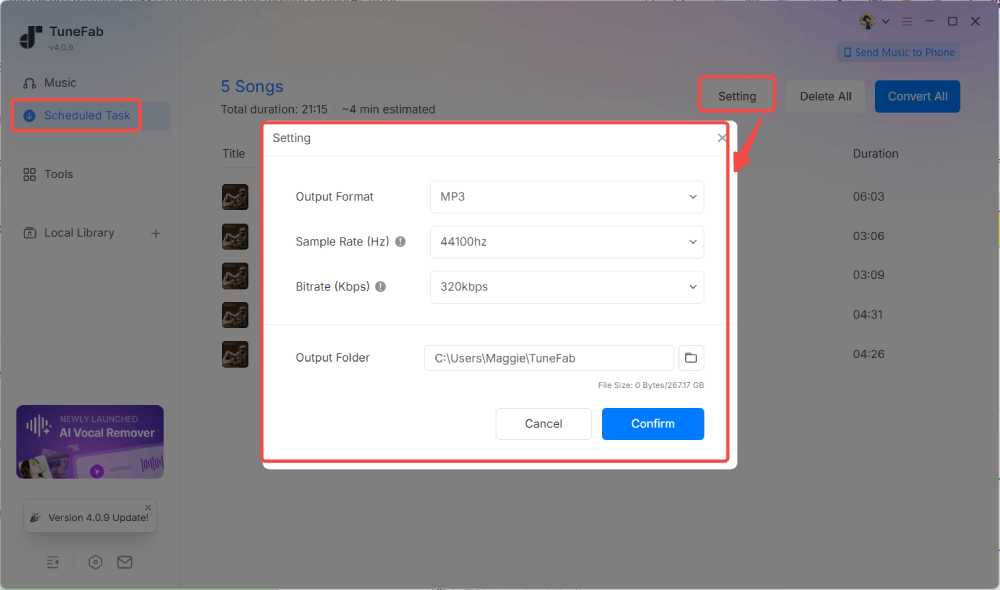
Step 3. After adding songs to the conversion list, we adjusted output settings at the top. For this test, we selected MP3 as the output format.
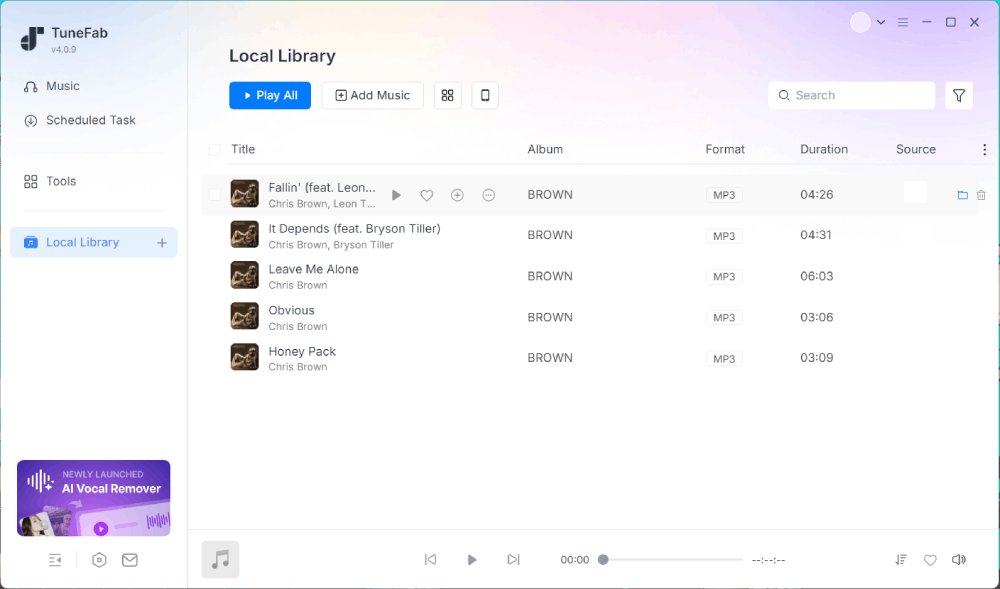
Step 4. The free version allowed downloading 3 full tracks. Converting three songs took about 25 seconds in total. The files appeared in the "Local Library", where they could be played directly.
Step 5. We checked the exported files on macOS. The exported files played normally, and the metadata was retained as expected. There were no noticeable limitations during the free trial beyond the track count restriction.
After Testing: How TuneFab Actually Performed
✅ Key Advantages:
- Supports batch conversion
- Exports to MP3, M4A, WAV, FLAC, ALAC, and AIFF
- Preserves ID3 metadata, including artist, album, year, and cover art
- Built-in Apple Music web player
- Supports direct batch conversion instead of real-time recording
🤔 Limitations:
- Free version limits the number of full-track downloads
- Requires software installation
👉 Best For: Users who want to download multiple songs or playlists efficiently, keep customizable output settings, and organize a long-term offline collection.
🎉 Tip: TuneFab currently provides a 10% discount with the code - TFWELCOME.
Method 2. Online Apple Music Rippers - APLMate
- Platform tested: Apple Music Web Player + Chrome (macOS)
- Test content: 1 Apple Music track
- Ripping result: Successfully downloaded
- Output format: MP3 only
- Time taken: About 10 seconds for 1 track
- Batch support: Not supported
- Output checked: Playable audio in MP3 only, with preserved metadata
If you prefer not to install any software, an online Apple Music ripper can be a convenient alternative. Unlike desktop converters, these tools typically work by pasting an Apple Music track URL into a web page and generating a downloadable audio file. While they're easy to access, most only support individual song links and offer limited control over output settings.
We tested APLMate, a free web-based Apple Music downloader that requires no installation or account registration. During testing, we used the Apple Music web player to copy a song link, pasted it into APLMate, and checked the downloaded file for playback, metadata, and basic audio properties.
Step 1. Open Apple Music (app or web player), copy the link of the song you want to download, then paste it into APLMate's search box.
Step 2. Click Download and wait a few seconds while the tool fetches the song information.
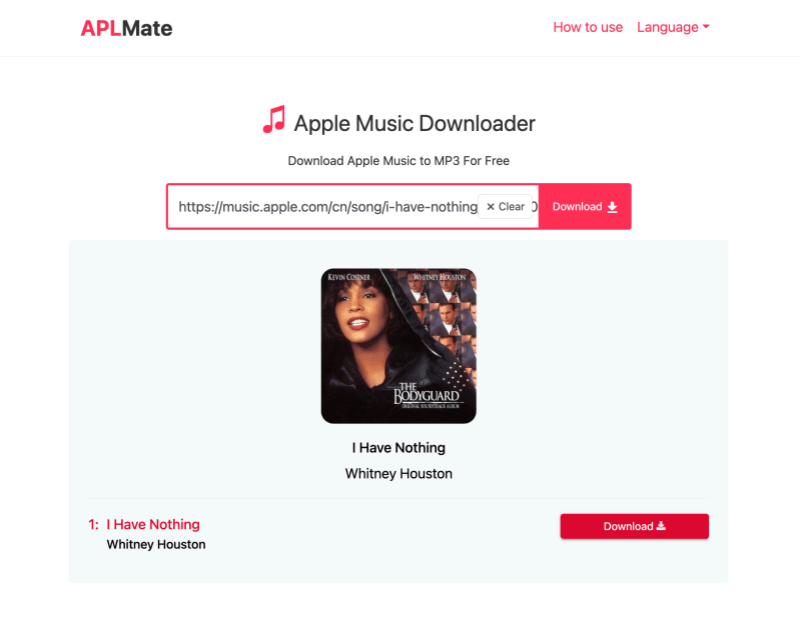
Step 3. Once the results appear, click Download MP3 to save the song to your computer.
Step 4. We downloaded the exported file and checked its properties. In our test, downloading a single song took around 10 seconds. The MP3 file played normally, retained basic metadata such as the song title and artist, and showed a 44.1 kHz sample rate. However, APLMate only supports downloading one track at a time and does not accept album or playlist links.
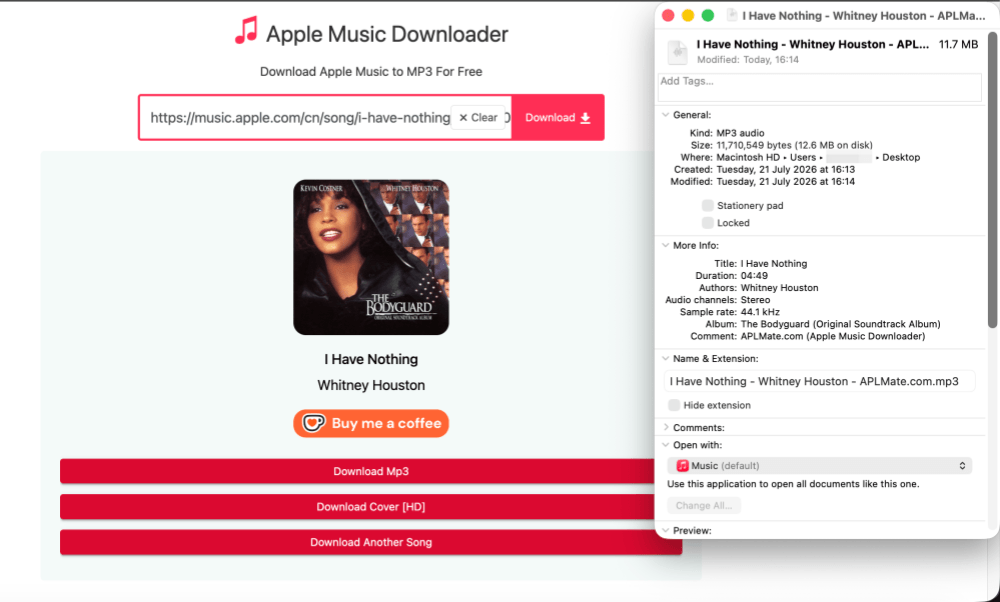
After Testing: How APLMate Actually Performed
✅ Key Advantages:
- Free to use with no software installation
- Simple copy-and-paste workflow
- Downloads individual Apple Music tracks quickly
- Preserved basic metadata in our test
🤔 Limitations:
- Only supports individual song links
- No playlist or album downloads
- No output format or quality settings
- Requires manually downloading each track
👉 Best For: Users who only need to download an occasional Apple Music song without installing desktop software.
Why Online Apple Music Recorders Often Fail
You may also search for a free online Apple Music recorder because it seems convenient — no installation, no setup. However, in practice, most web-based audio recorders struggle to capture Apple Music due to content protection and browser limitations.
We tested a well-known online audio recorder called Apowersoft to see how it performs in real scenarios. Here's what we found:
- The web version could only capture speaker output, not direct system audio.
- The desktop app repeatedly failed to respond after installation.
- When attempting to record Apple Music, both in the app and in the web player, the audio was muted during playback. Changing output settings, including headphones, microphone, or default speakers, did not bypass the restriction.
Method 3. Desktop Screen Recorder - OBS Studio
- Platform tested: macOS
- Test content: 1 Apple Music track
- Recording result: Successfully captured Apple Music playback
- Recording time: Real-time, same length as the song
- Output format: MOV (macOS); MP4 (Windows by default)
- Batch support: Not supported; record songs one by one
- File check: Video file with recorded audio; playback successful
If you're looking for a completely free Apple Music ripper, OBS Studio is one of the most popular options for recording. Available on Windows, macOS, and Linux, this open-source software is primarily designed for screen recording and live streaming, but it can also capture Apple Music playback by recording system audio in real time.
The biggest advantage of OBS Studio is that it's completely free and highly customizable. However, because it records playback in real time and exports video files by default, it's slower than a desktop converter and less suitable for building a large offline music library.
Step 1. After launching OBS, we entered the main interface and clicked the "+" icon under the "Sources" panel.
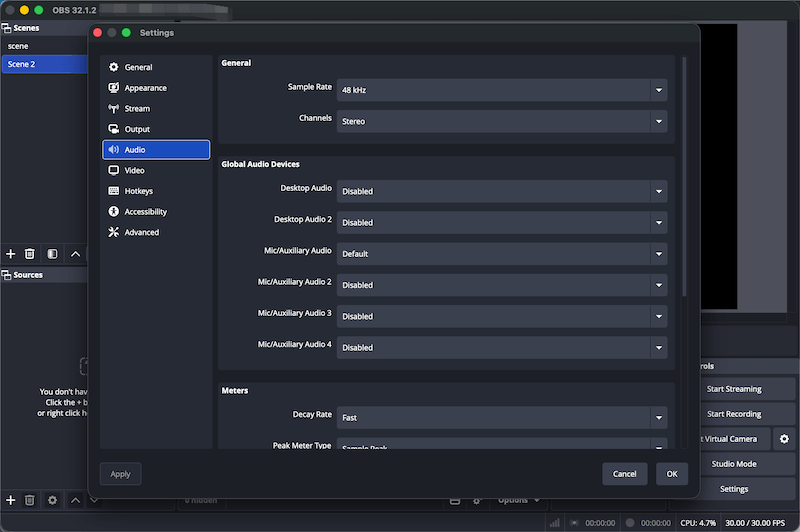
Step 2. We selected "macOS Audio Capture" as the source and muted the microphone to avoid background noise.
Step 3. In the bottom-right "Settings" panel, we adjusted audio output configurations.
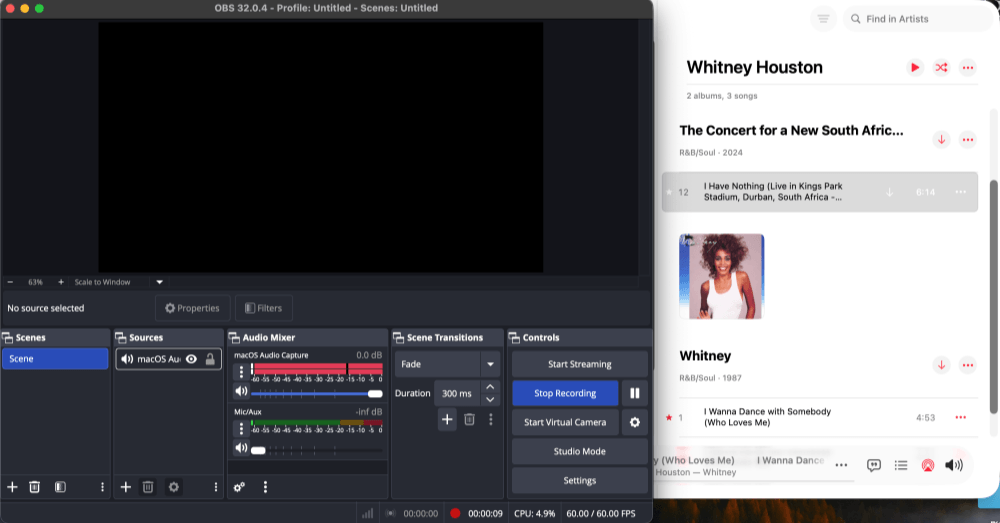
Step 4. We played a track on Apple Music and started recording. The recording worked, but since OBS captures audio in real time and outputs a video file, the process is time-consuming. During our test, the recording sounded acceptable for casual playback, but it is hard to determine whether it is identical to the original stream.
Step 5. After stopping the recording, we checked the exported files and found that OBS saves recordings in video format by default, typically MP4 on Windows and MOV on macOS. The exported audio quality was acceptable through speakers, but slightly compressed when listening through headphones.
After Testing: How OBS Studio Actually Performed
✅ Key Advantages:
- Free and open-source
- Works on Windows, Mac, and Linux
- Flexible audio and scene configuration
- Suitable for streaming setups
🤔 Limitations:
- Records in real time, with no batch export
- Exports video files instead of standalone audio by default
- Requires manual setup
👉 Best For: Users who want a free way to capture an occasional Apple Music track and don't mind recording in real time. It's also suitable for streaming or other situations where video recording is already part of the workflow.
Method 4. GitHub Apple Music Ripping Tools
Note: We did not include GitHub projects in our hands-on comparison because their installation process, maintenance status, and supported features can change frequently. The information below is based on each project's official documentation at the time of writing rather than our own testing.
In addition to desktop software and online downloaders, several open-source Apple Music ripping projects are also available on GitHub, two of which are apple-music-rip by HARAJIT05 and apple-music-downloader by zhaarey. Unlike the other methods covered in this guide, these projects are designed primarily for technical users who are comfortable working with command-line tools, software dependencies, and manual configuration.
According to their official documentation, both projects support downloading Apple Music content in multiple audio formats and offer features beyond those found in many desktop or online tools. Depending on the project, supported capabilities may include downloading songs, albums, and playlists, preserving lyrics and metadata, selecting different audio formats, such as AAC, ALAC, and Dolby Atmos, and customizing download behavior through configuration files or command-line options.
However, these tools also have a much higher setup barrier. Most require additional software or runtime environments, such as Go, Docker, or Linux, dependency installation, and extra authentication steps. Some features also require an active Apple Music subscription and a valid media-user-token obtained from the Apple Music web player.
👉 Best For: GitHub Apple Music rippers are best suited for developers, Linux users, and advanced users who prefer open-source software and don't mind configuring their own environment. For most users looking for a simpler workflow, a desktop converter or an online downloader will generally be easier to use.
Tip: If you want to learn more about Apple Music ripping/download tools, please check:
Final Verdict: Which Is the Best Apple Music Ripper for You?
There's no one-size-fits-all Apple Music ripper. The best option depends on how you plan to save your music and how much setup you're comfortable with.
| If you want to... | Recommended Method |
| Download Apple Music playlists or large music libraries | Desktop Apple Music converter, like TuneFab Apple Music Converter |
| Download a single Apple Music track without installing software | Online Apple Music downloader, like APLMate |
| Save an occasional Apple Music song if audio quality isn't your top priority | Desktop audio recorder, like OBS Studio |
| Prefer open-source tools and don't mind manual setup | GitHub Apple Music rippers |
For most users, a desktop Apple Music converter, like TuneFab Apple Music Converter, offers the best balance of convenience, batch support, and file management, making it the most practical choice for building an offline music library. If you only need to download a song occasionally, an online downloader is faster to access and requires no installation.
Meanwhile, OBS Studio remains a reliable free workaround for recording playback in real time, while GitHub projects are better suited to advanced users who prefer open-source solutions and are comfortable with a more technical setup.
FAQs About Apple Music Rippers
Why does my Apple Music ripper return no sound?
Browser recorders may fail to capture protected audio, while some online downloaders only support individual song links or may stop working if the service changes. If one method doesn't work, a desktop converter is often the most reliable alternative.
Can Apple Music rippers download playlists?
It depends on the method you choose. Desktop converters generally support batch downloading entire playlists, while most online downloaders only process one song at a time. Some open-source GitHub projects also support playlist downloads but typically require more technical setup.
Can I use an Apple Music ripper on my iPhone?
Not directly. Apple blocks internal audio capture during screen recording, so neither the built-in screen recorder nor third-party apps can record Apple Music audio. While some users route iPhone audio to a Mac for external recording, a desktop converter is generally the more practical option for downloading multiple tracks.
Is there a free Apple Music ripper?
Yes. Free options include screen recorders like OBS Studio, browser-based downloaders such as APLMate, and several open-source GitHub projects. However, each comes with trade-offs, such as manual setup, limited functionality, or technical requirements.